BOOK 03/25Front of house & tables
Reservation management
A supplement to the “Reservations” help page — covering only the advanced admin/owner tools: editing/moving/deleting an individual booking, owner-mode PIN that skips the deposit step on a walk-in booking, the “Booking history” tab, and the details of the “Revenue” page.
Edit / move / delete an individual booking (“Manage” tab)
The reservation list is split into 2 sections
Below the “Daily table closure” grid, the “Manage” tab shows 2 sections: “Tables booked today” (today only, no pagination) and “All bookings” (every booking ever made, 10 rows per page).
“All bookings” really is every booking, not just past ones — today's bookings appear in both sections.
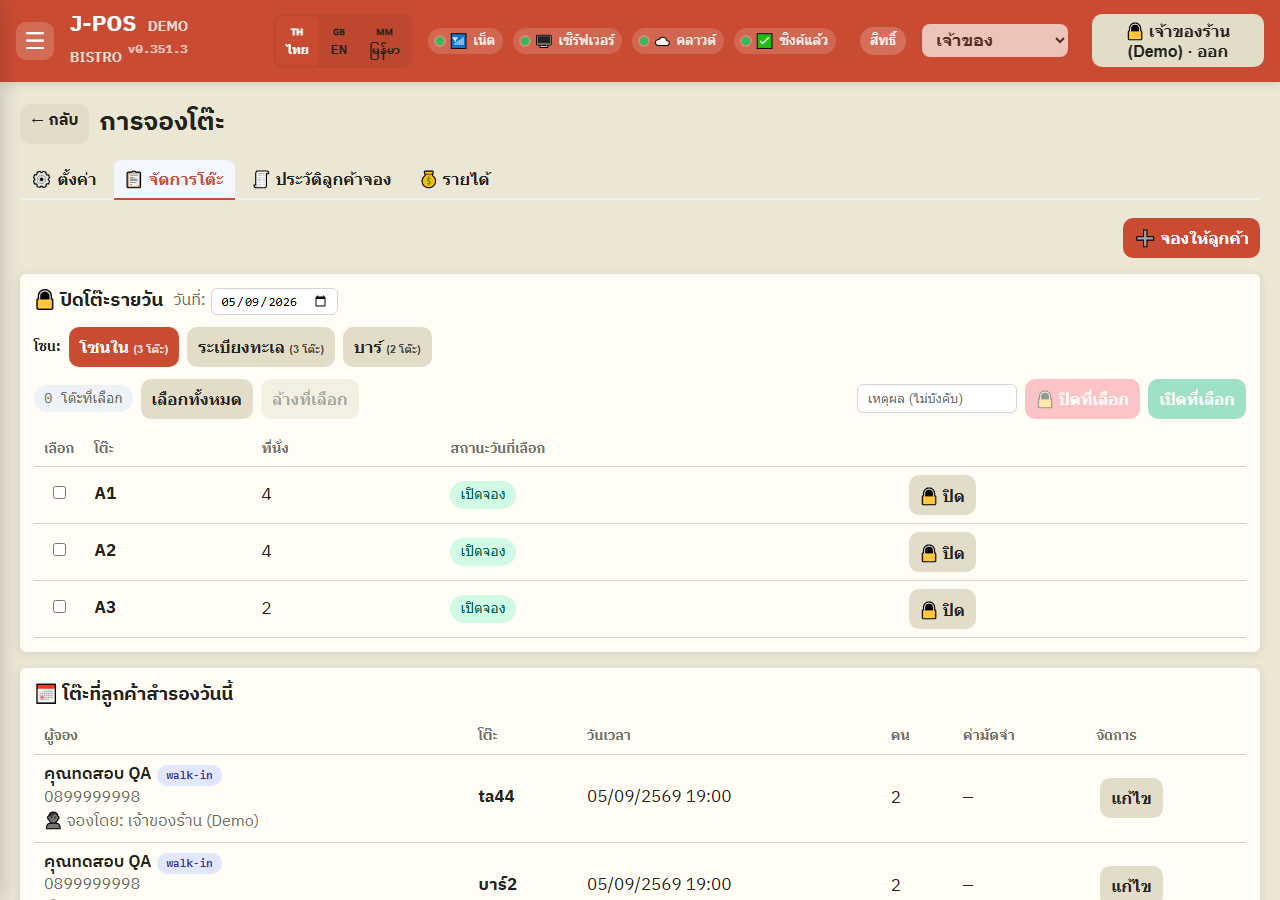
Open full size Press “Edit” to open the per-row management panel
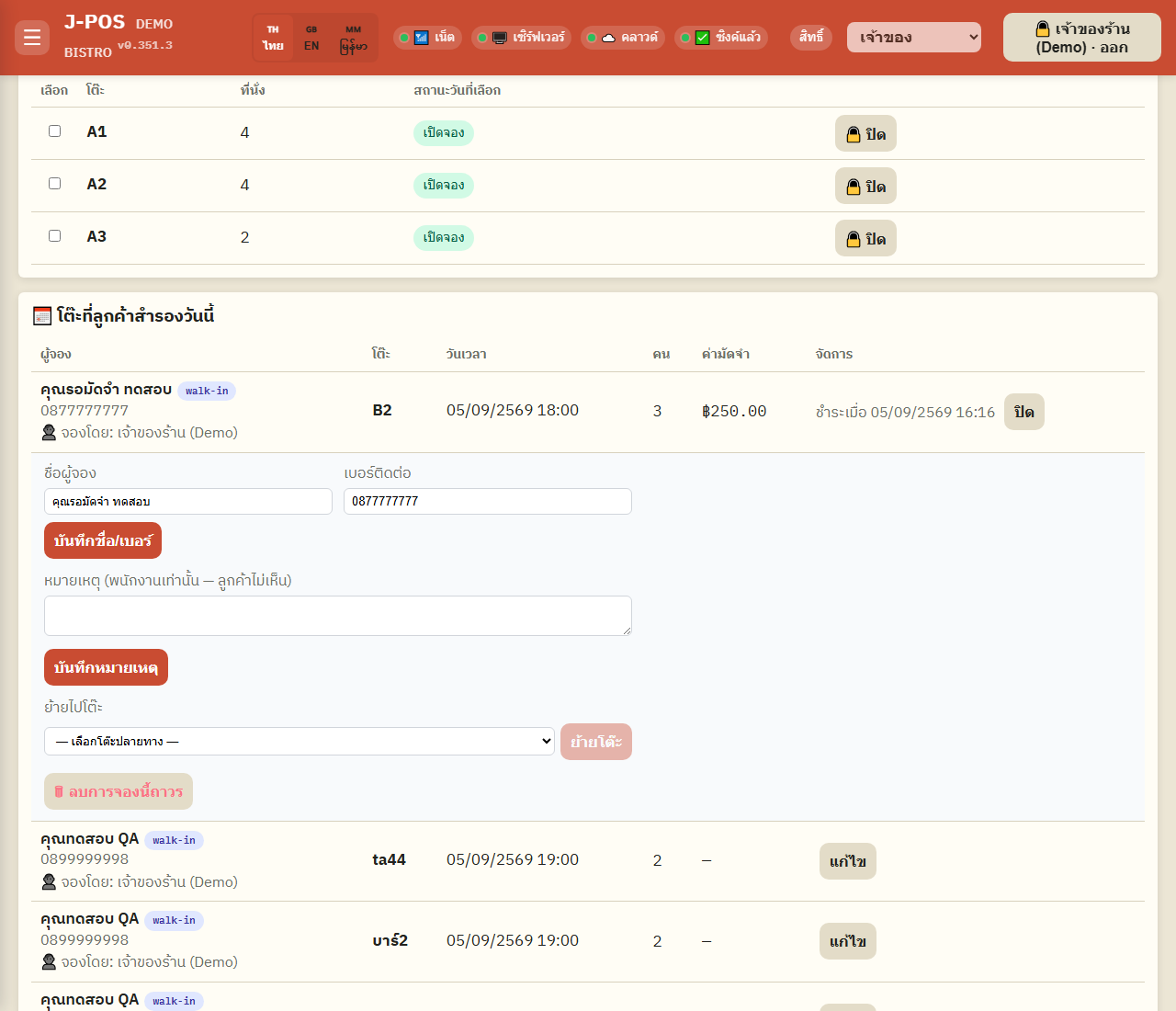
Press “Edit” on any booking row (works on any status, not just awaiting-deposit) to open an expandable panel under that row.
In that panel you can edit the reserver's name/phone and press “Save name/phone” right away, type a staff-only “Note” (never shown to the customer) and press “Save note”, pick a destination table and press “Move table” (only on a booking that isn't cancelled/completed), or press “Permanently delete this booking” — unrecoverable.
Press the same button again to close the panel — it relabels to “Close” while the panel is open.
Open full size
Owner mode — skip the deposit step when booking for a customer
Enter the owner PIN to confirm instantly
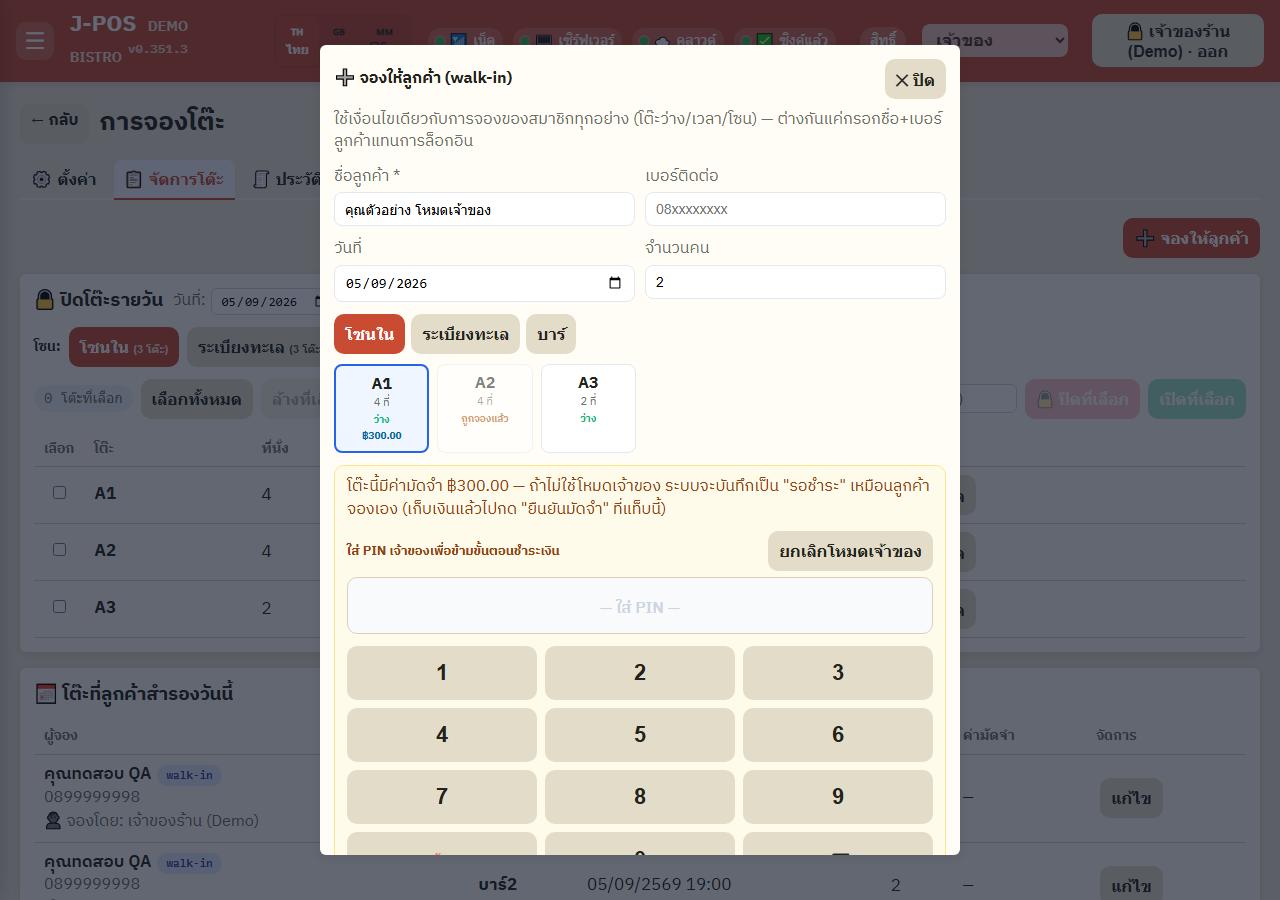
When the “Book for customer (walk-in)” dialog is open and the selected table has a reservation fee, an “Owner mode (skip payment step)” button appears.
Press it and enter the owner PIN — if correct, the booking is confirmed immediately, with no need to collect payment first and confirm the deposit later.
Without owner mode at all, a fee'd booking still goes into “awaiting deposit” status as before and needs to be confirmed from the “Manage” tab. If owner mode IS opened but the PIN is wrong, the booking is rejected outright and nothing is saved — you'll need to fill in the booking again — and repeated wrong attempts get temporarily locked out.
Open full size
The “Booking history” tab (new)
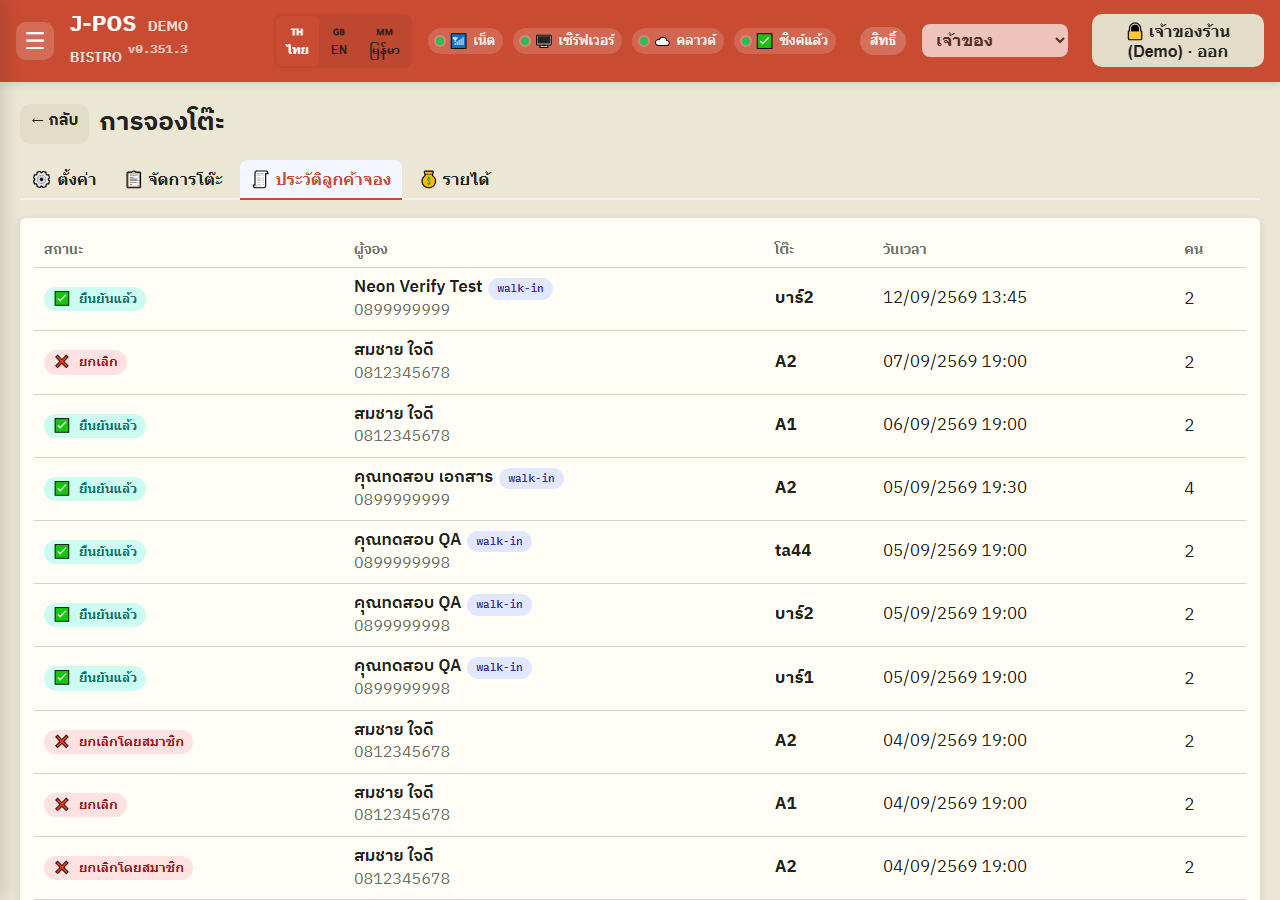
A read-only, detailed status log of every booking
This tab lists every booking, newest first, with a detailed status badge such as “✅ Checked in”, “🚫 Auto-released (no-show)”, “❌ Cancelled by member”, or “❌ Cancelled by staff”.
There are no action buttons here at all — confirm/reject/edit/move/delete all still happen on the “Manage” tab. This tab is for review/audit only.
Open full size
The “Revenue” page in detail
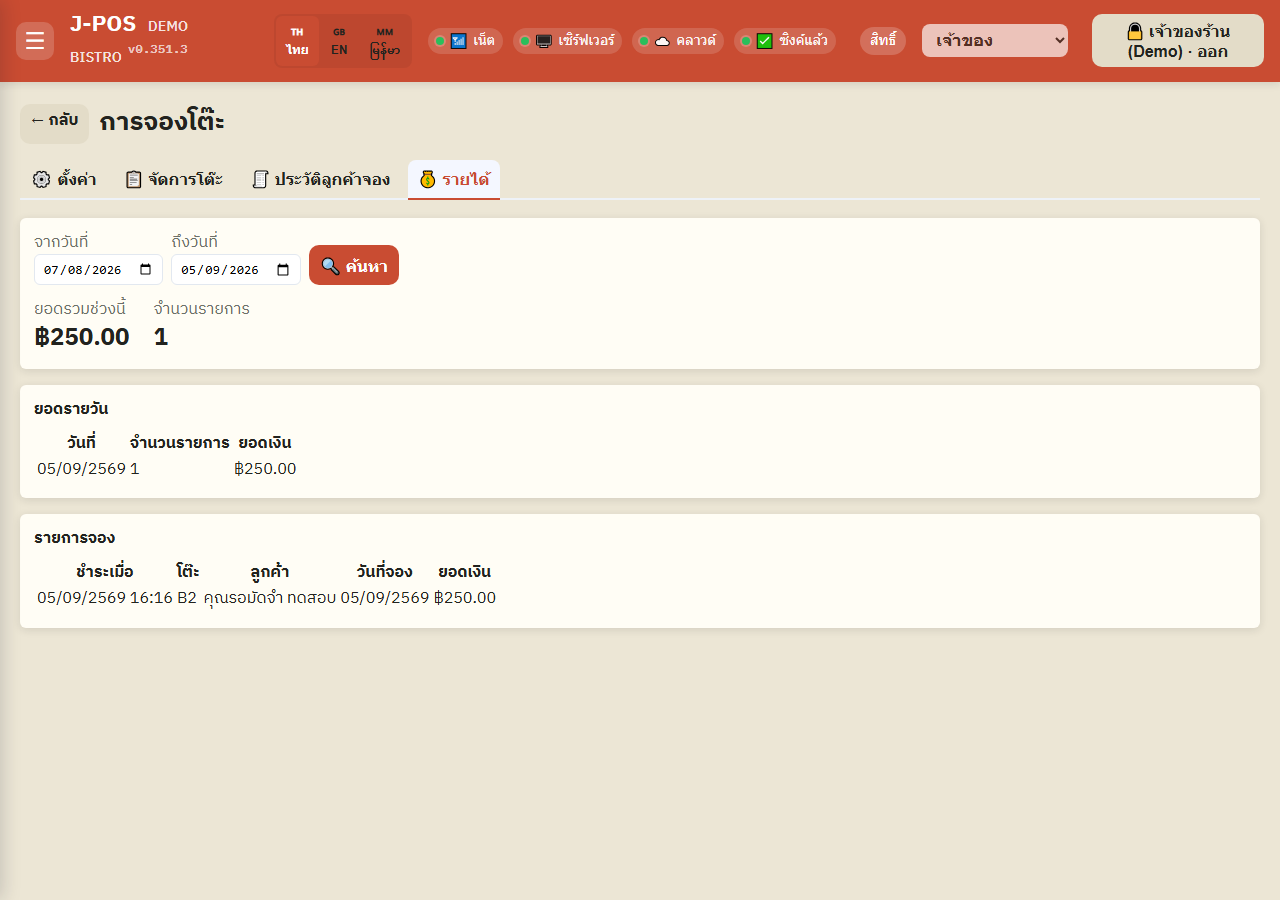
Pick a date range to see totals and the itemized list
Pick “From date”/“To date” and press “Search” — only bookings that were actually paid within that range are counted (by the payment date, not the booking date).
At the top: the period total + item count; the “Daily totals” table breaks it down by day; the “Bookings” table lists each one individually: paid at, table, customer, booking date, amount.
Open full size
Common points of confusion
Editing name/phone has different scope for a member row vs. a walk-in row
If the row belongs to a member (has a memberId), pressing “Save name/phone” edits that member's profile directly — it affects everywhere that name/phone is used, not just this one booking. A walk-in row (booked for a customer with no member account) only edits that one booking's own record; nothing else is affected.
“Daily totals”/“Bookings” count by payment date, not the dining date
If a customer booked far in advance but only paid the deposit today, the amount is counted under today (the payment date), not the date they'll actually show up.