BOOK 08/25Bills & payments
Payment alerts
Track incoming bank transfers (from LINE/SMS/banking-app notifications) and auto-match them to open bills, with a manual-matching path for staff when automatic matching fails.
What the PromptPay money-in page does
Where the money-in alert comes from
A notification listener installed on a phone/the shop's device watches for “money in” notifications from banking apps (e.g. KBank SMS, SCB SMS) or a wallet app like Mae Manee, and forwards the message to the system.
The system extracts the amount from the message itself automatically — it only takes the transfer-in amount, never the account balance, and withdrawal/payment-out messages are dropped entirely since they're not incoming money.
Open full size Automatic matching against bills
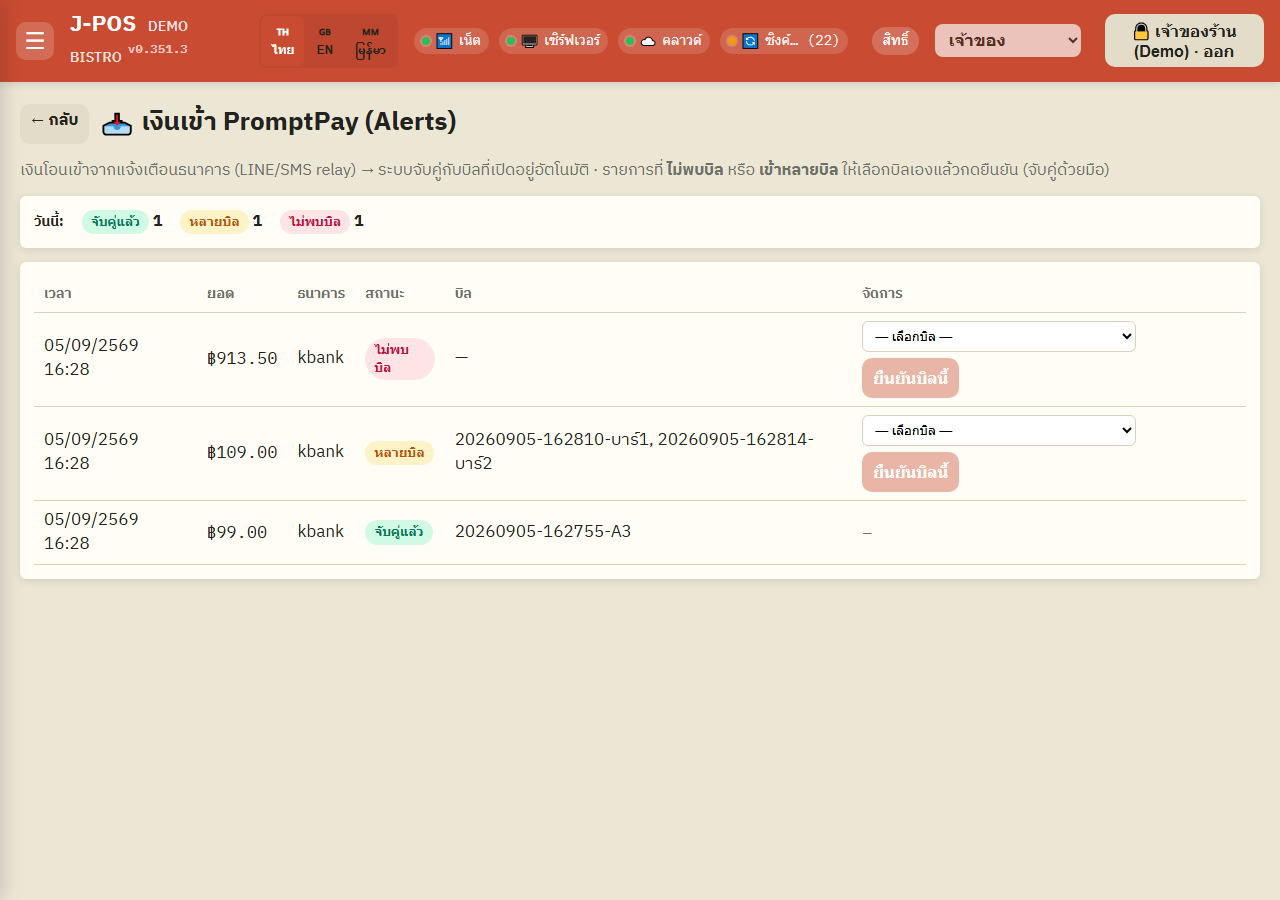
The extracted amount is compared exactly against every currently open bill's total, with no guessing or rounding: exactly one bill matches → matched immediately (status “matched”) and staff can close it right away; multiple bills match → status “multiple bills”, waiting for staff to confirm which one; nothing matches → status “no bill found”, waiting for manual matching.
Open full size Today's summary and the recent-alerts table
This page shows a per-status count for today (matched / multiple bills / no bill found) for a quick overview, and a table below listing every incoming alert newest first with its time, amount, bank, and matched bill — it auto-refreshes roughly every 15 seconds, no manual reload needed.
Open full size
Opening the PromptPay money-in page
Where to find this page
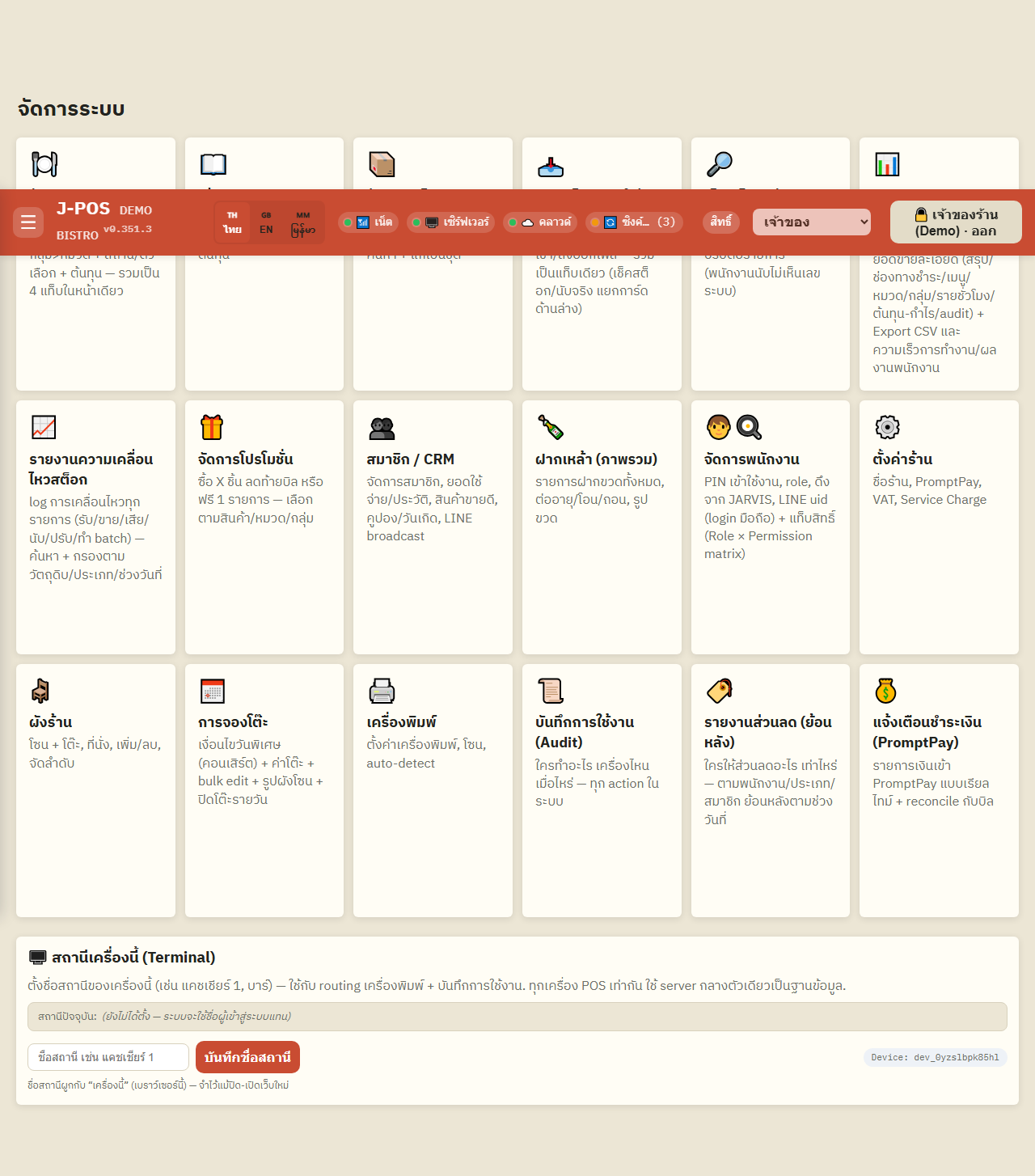
Open it from the sidebar's “PromptPay Money In” link, or the “Payment Alerts (PromptPay)” card on the admin home screen — you need system-admin/settings permission to open the page and even see that menu link or card.
Open full size Pick the bill and confirm with a PIN
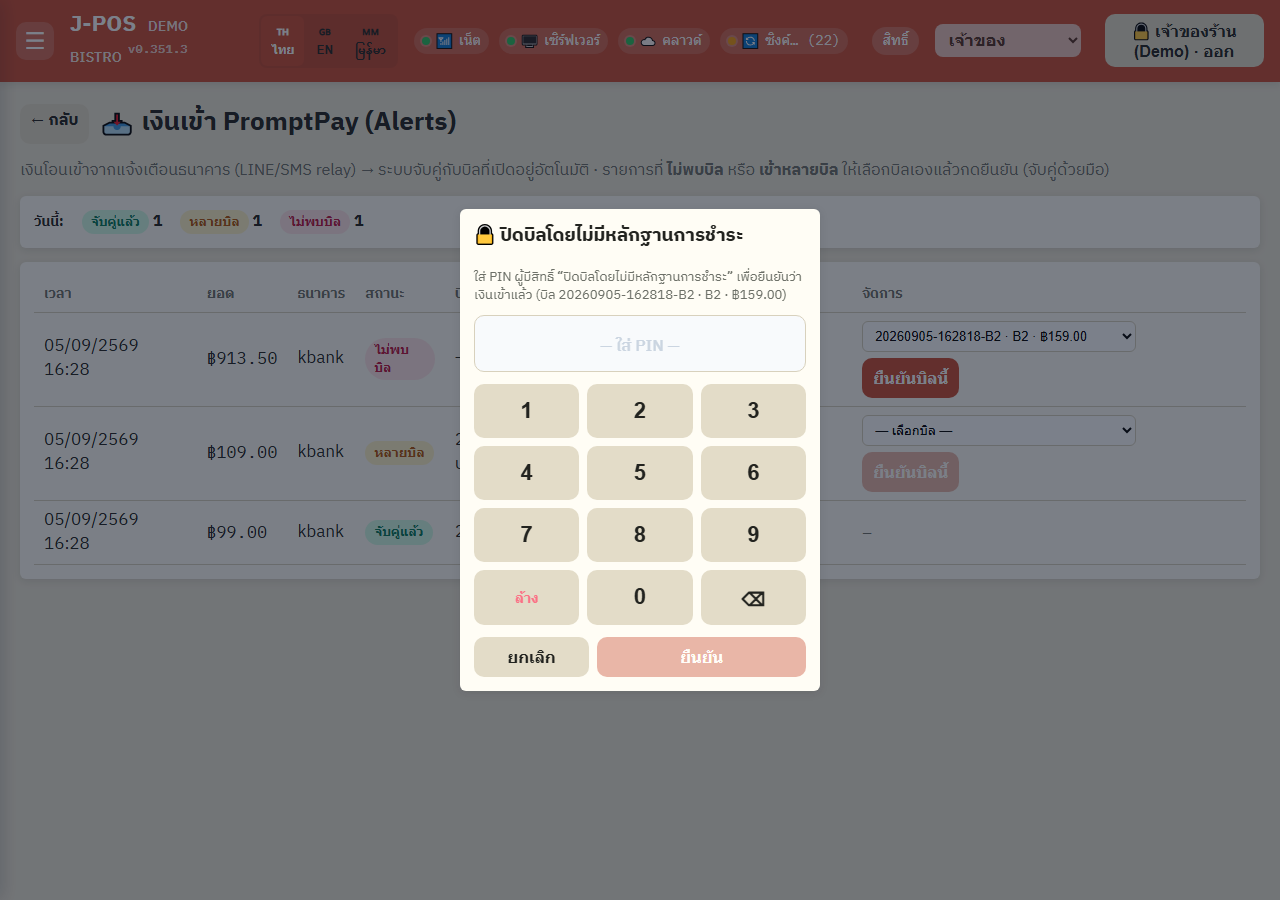
For a row marked “multiple bills” or “no bill found”, pick the open bill it belongs to from the table's dropdown (shows bill number, table, and amount to compare), press “confirm this bill”, then enter the PIN of someone authorized to close a bill with no proof of payment to confirm for real — the same step used when staff close a bill at the counter without a slip.
Open full size What happens after confirming
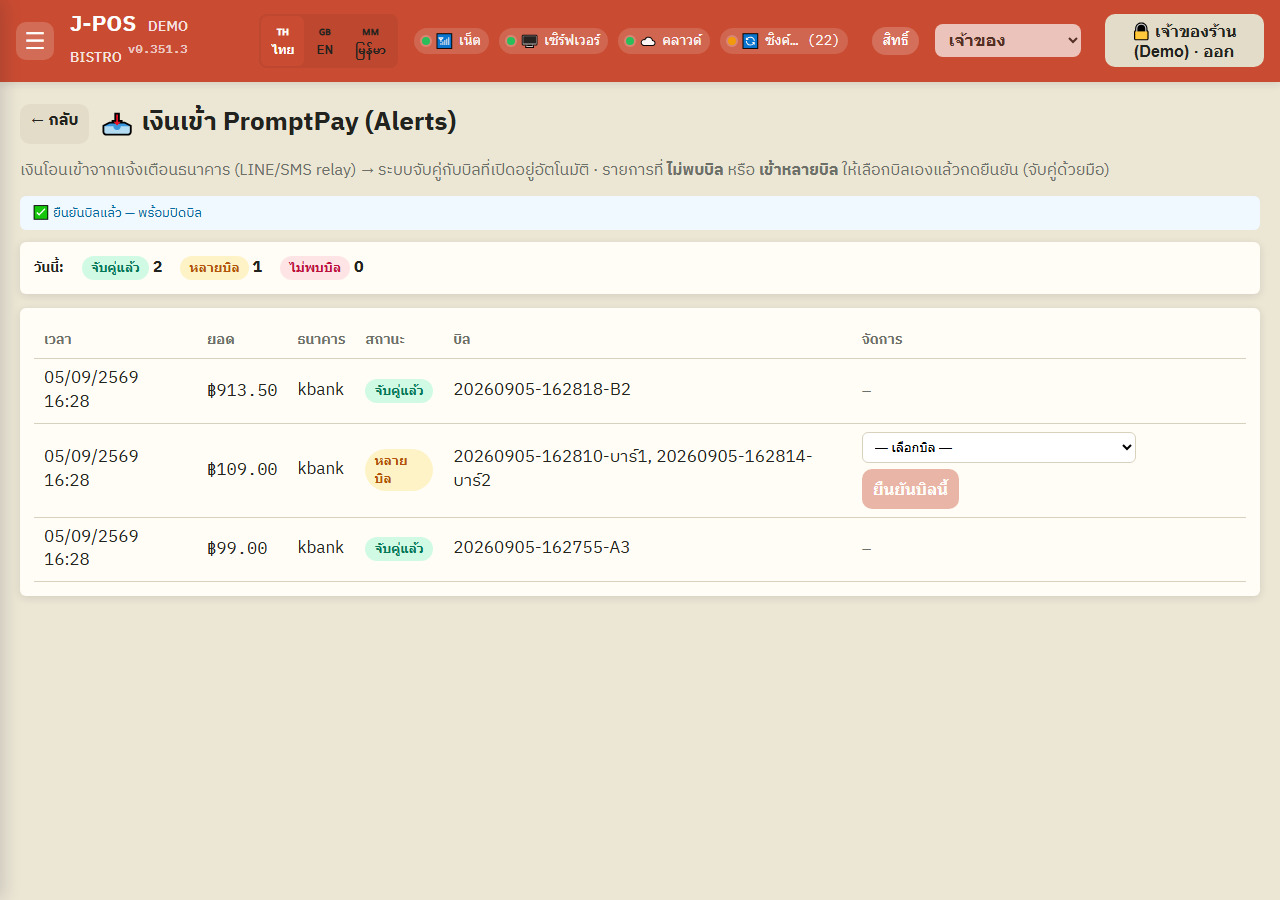
The chosen bill immediately becomes “ready to close”. If that alert was originally “multiple bills”, the other candidate bills are released back to waiting for their own transfer, not closed.
Open full size
Common points of confusion
Same amount matches several bills — the system never guesses
If several open bills happen to have the exact same total, the system does not pick one at random. All of them are set to “awaiting verification” at once, until staff compare the slip/details and pick the right bill here. Bills that aren't chosen are never closed — they simply keep waiting for their own payment.
Money arrived but shows “no bill found” — how is that possible
Matching is by exact amount only — it does not filter by how long a bill has been open (a bill left open for hours still matches normally). The one exception: when the bank text embeds a transfer time, a bill opened more than about 1 minute after that time is excluded from matching (to avoid wrongly matching a bill opened after the money already arrived). If nothing matches, verify the amount and match the bill manually.
"Couldn't parse" doesn't mean the money never arrived
This status means the system received the notification text but failed to extract an amount from it (the message format changed or was unexpected) — the money may well have arrived; check manually and match the bill yourself if needed.
A duplicate alert from the same relay
If the notification listener attaches a stable message id every time, the system dedupes automatically. Without one, a resend (e.g. the listener retrying on its own) creates a separate row in the table — seeing the same amount twice does not mean the money arrived twice; check before matching/confirming so you don't close a bill for the same payment twice.
What to do about delayed or missing alerts
The system directly supports KBank/SCB SMS and the Mae Manee app via the installed notification listener. A banking app that isn't set up yet may never produce an alert at all — test with a small transfer before relying on it fully. If money genuinely arrived but no alert shows here, staff should close the bill with the manual confirm + PIN path instead of waiting.
Access to this page and manual-confirm authority are two separate levels
Opening this page requires system-admin/settings permission — a regular staff member who can accept payment on the billing screen may not have access to this page at all. Pressing “confirm this bill” on this page additionally requires the PIN of someone authorized to close a bill with no proof of payment; being able to open the page is not enough on its own.