BOOK 05/25Front of house & tables
Kitchen / Bar
The KDS (Kitchen Display System) shows every ticket that still needs cooking, split by station (kitchen/bar), in real time — mark items done one at a time or all at once, with alerts for tickets that have been sitting too long.
View and work tickets
Open the KDS screen
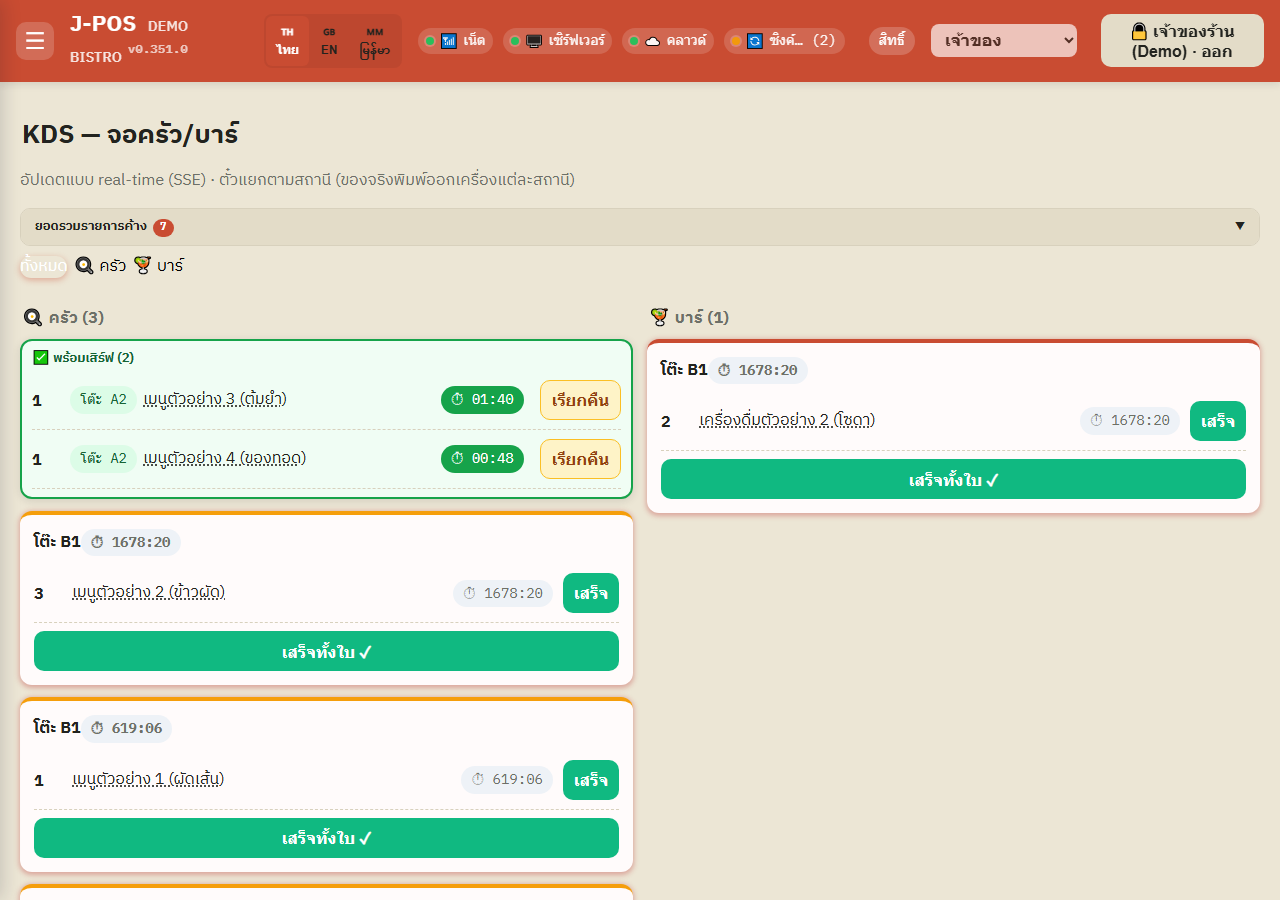
The kitchen/bar screen updates in real time (SSE) — each ticket belongs to the station its menu item is assigned to (kitchen or bar), and physically prints to that station's own printer.
Open full size Filter by station
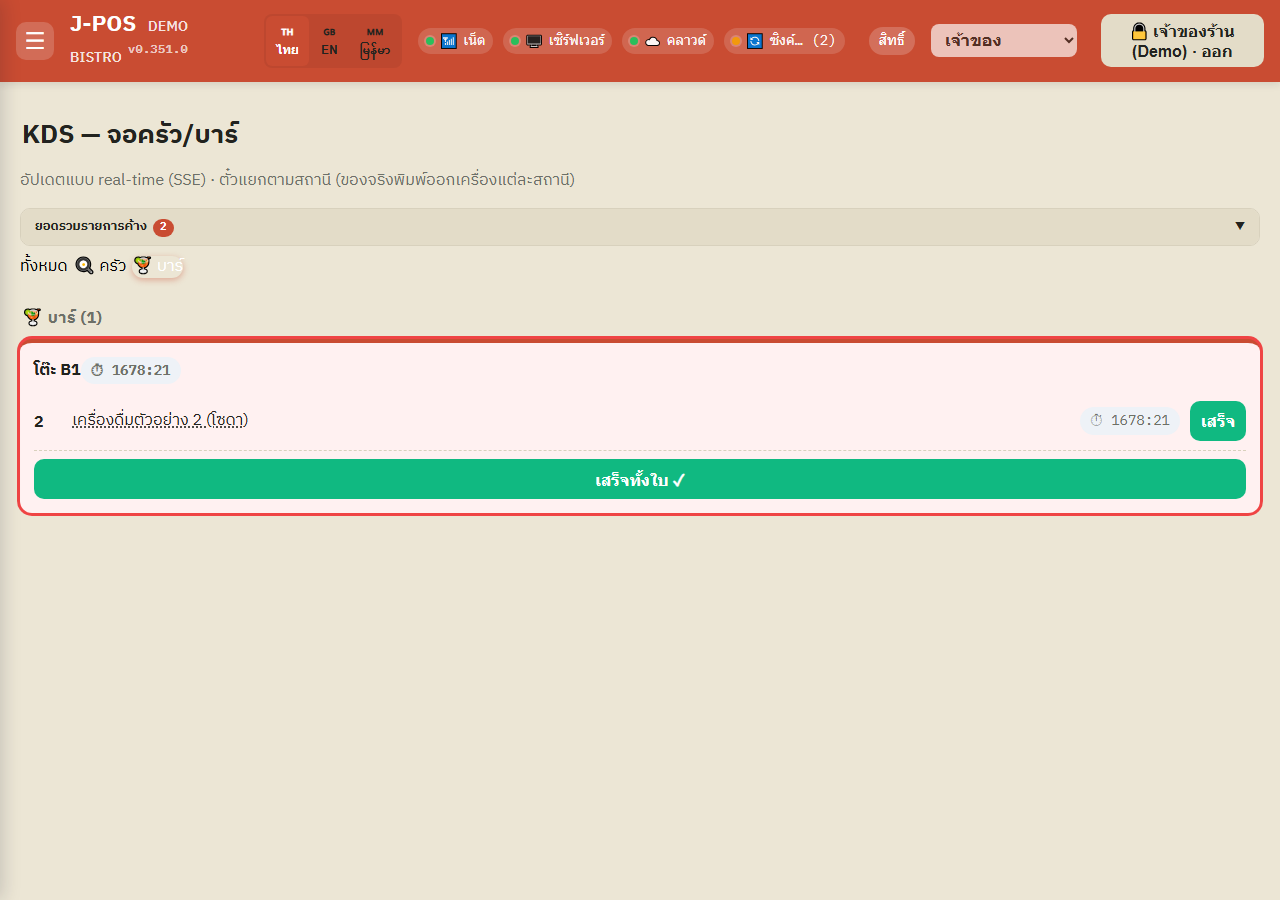
The tabs at the top are built from the shop's actual configured stations — “All” shows every station at once, or tap a specific station tab (e.g. 🍳 Kitchen, 🍹 Bar) to see only that station's tickets.
Open full size Mark items done, one at a time or all at once
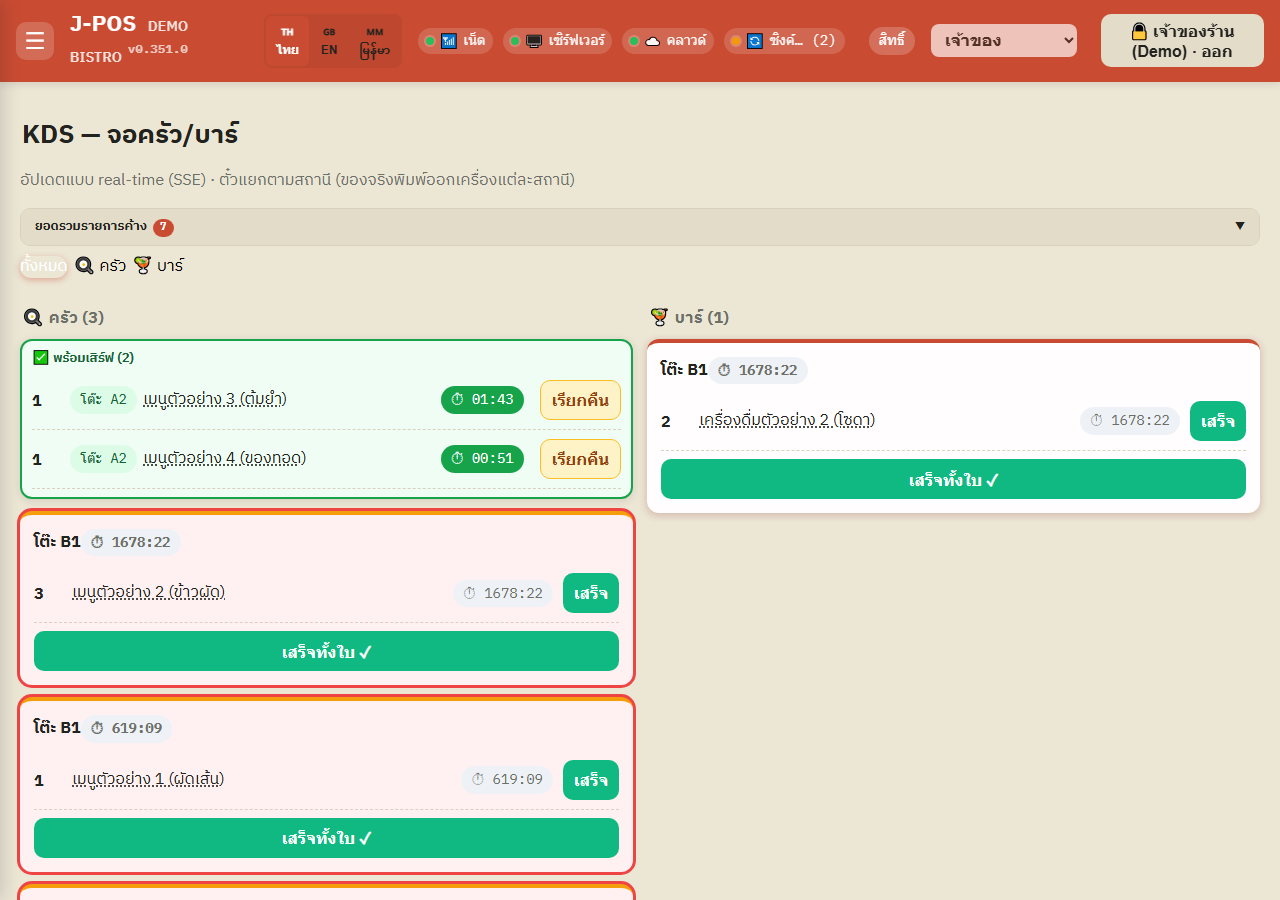
Each line on a ticket has its own “Done” button — press it once that item is ready.
Or press “Done (whole ticket) ✓” at the bottom of a ticket to mark every remaining line on it done at once.
Open full size See what's ready to serve
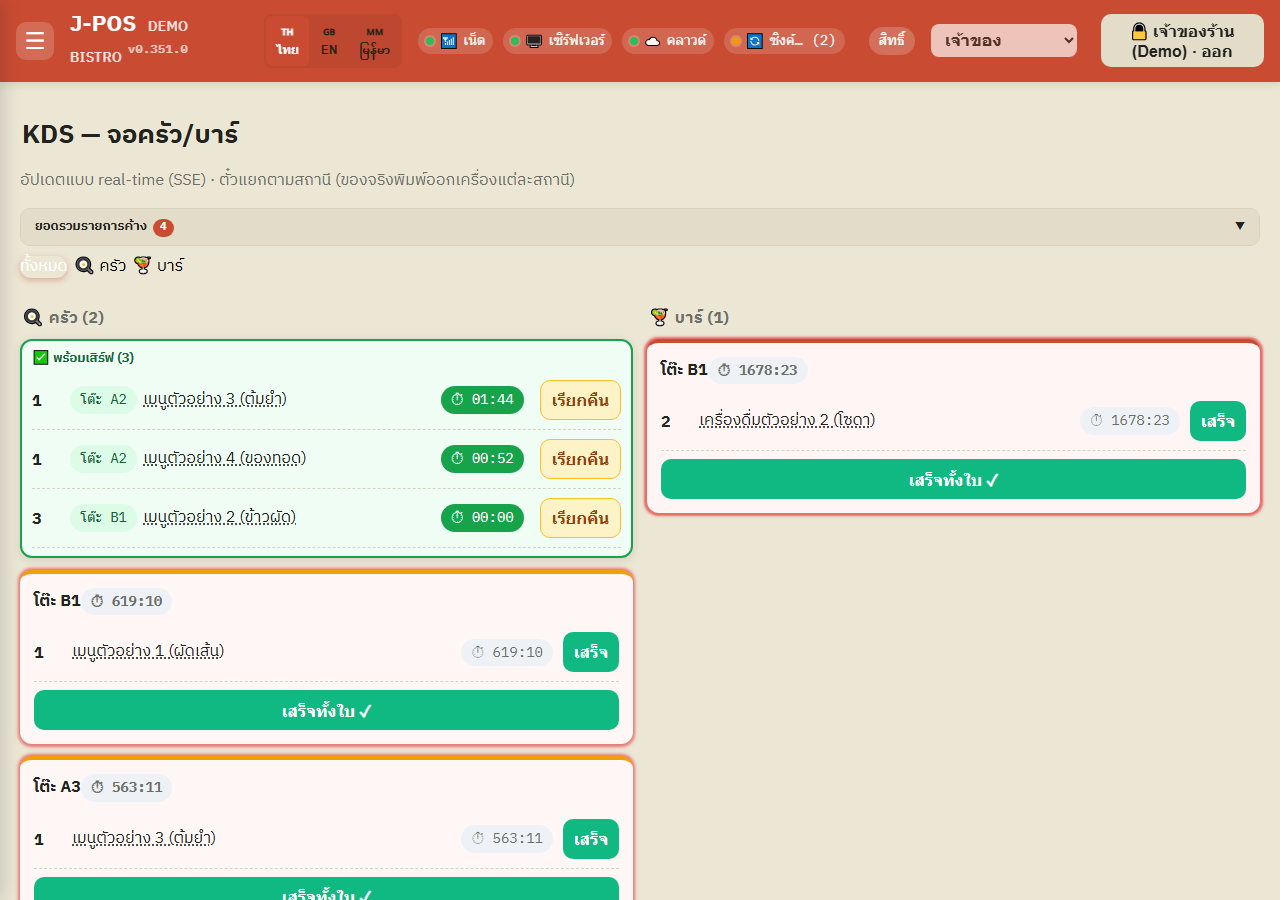
Items marked done move to a “Ready to serve” band pinned at the top of that station, with its own timer counting from when it was finished.
If you marked something done by mistake, press “Recall” to move it back to pending — the ready band automatically hides an item once it's been sitting there past the shop's configured time.
Open full size Spot tickets that have been sitting too long
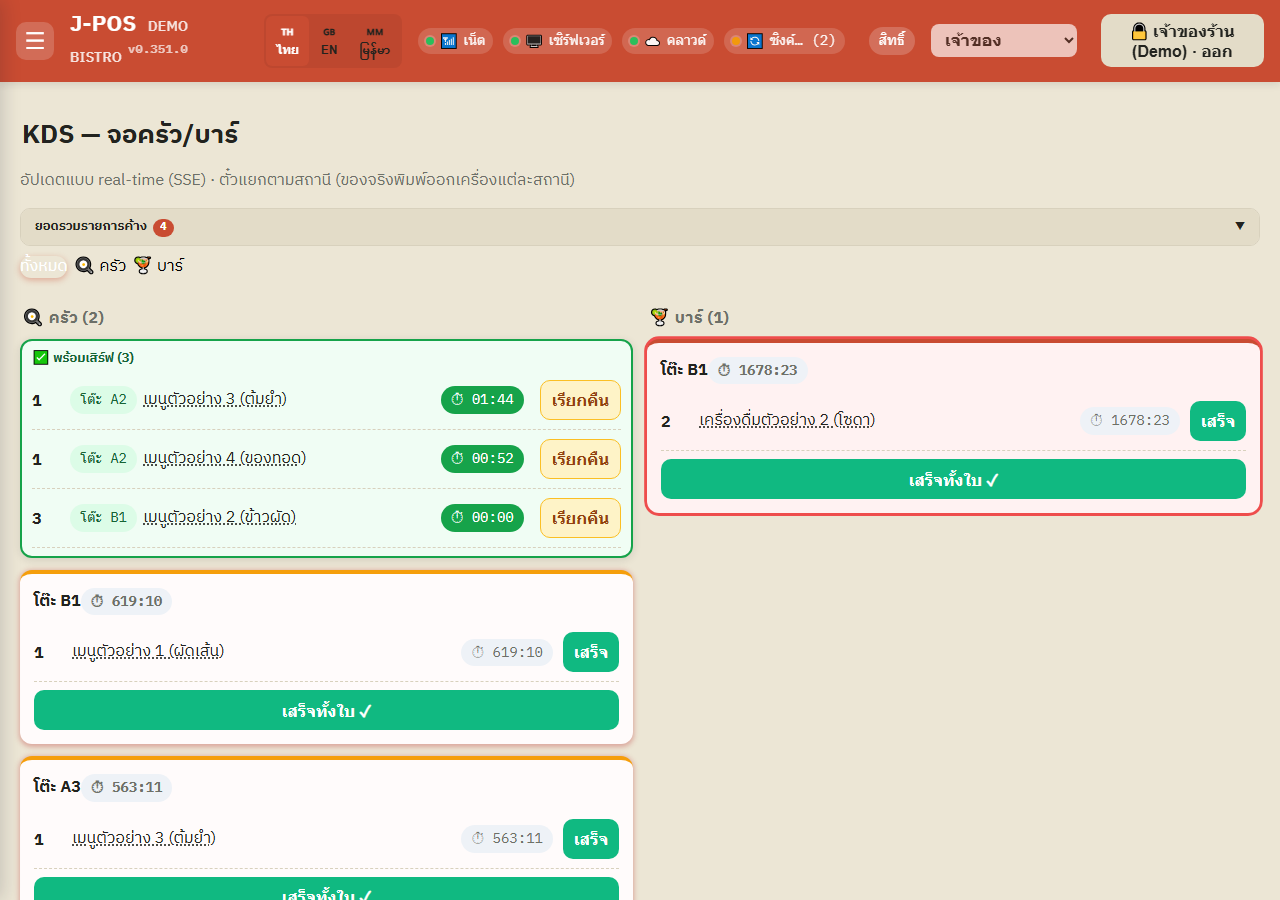
A ticket that's been open longer than the shop's configured threshold (two values: the bar value for the bar station, the kitchen value for every other station) gets a clear warning outline so it stands out immediately.
Open full size View a recipe straight from a ticket (if permitted)
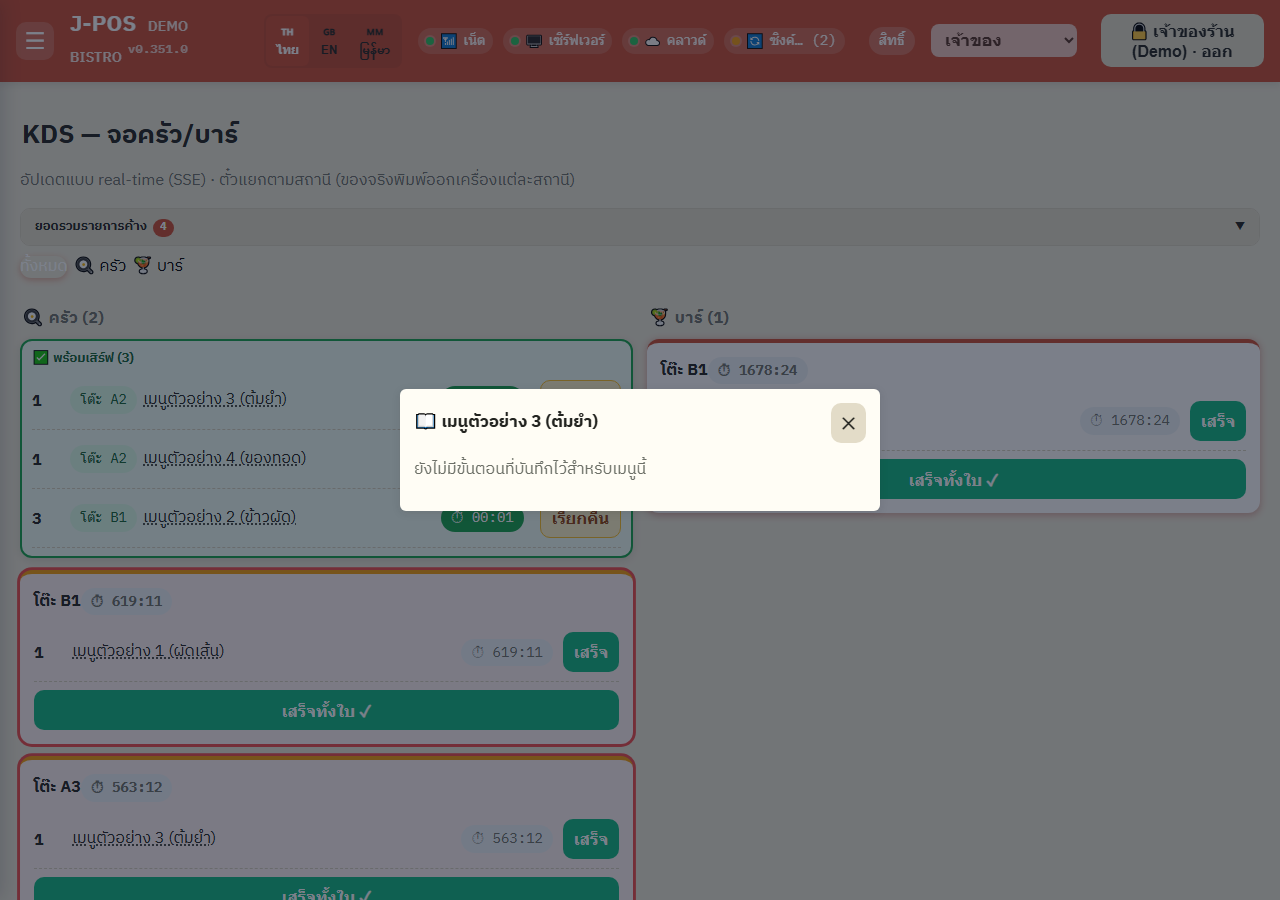
If you hold the recipe-view permission, each item name on a ticket becomes clickable — tap it to open a drawer with that dish's recipe/steps without leaving the KDS screen.
Open full size Check the all-day pending count
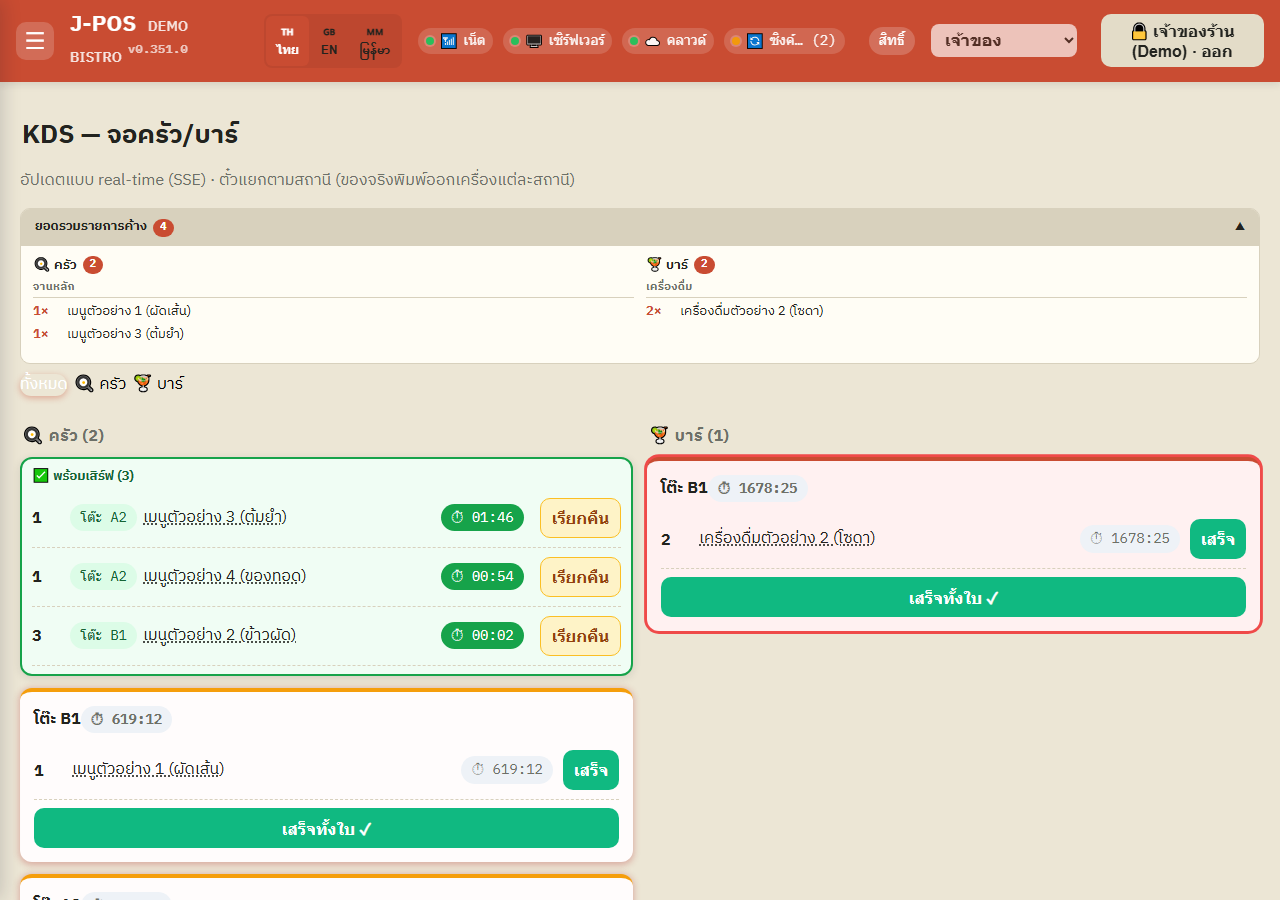
Tap the “All-day count” bar at the top to expand/collapse a summary panel — total pending quantity per menu item, grouped by category and station, useful for prepping ahead during a rush.
Open full size
Common points of confusion
Stations are a real print split, not just an on-screen filter
Kitchen and bar aren't just separate tabs on one screen — each station prints its own tickets to its own physical printer. A menu item assigned to the wrong station will show up/print in the wrong place; fix that in the menu settings, not on the KDS screen.
The stale-ticket threshold has two values: bar, and everything else
How long counts as "sitting too long" is a separate configured value for kitchen vs bar (set in shop settings), since kitchen dishes naturally take longer to prepare than bar drinks. Any other station, including ones you add, uses the kitchen value — it is not set per station.
"Recall" only works while the item is still in the ready band
The Recall button only exists on an item still showing in the ready-to-serve band — once it's auto-hidden past the configured time, there's no Recall button left to press. You'd need to edit that order from the table's ordering screen instead.