BOOK 21/25Staff & system
Staff management
Add, edit, and deactivate staff, assign each person a role and a login PIN, reset a forgotten PIN, and see how a staff member's role connects to the separate permissions matrix.
Add and view staff
Staff page overview
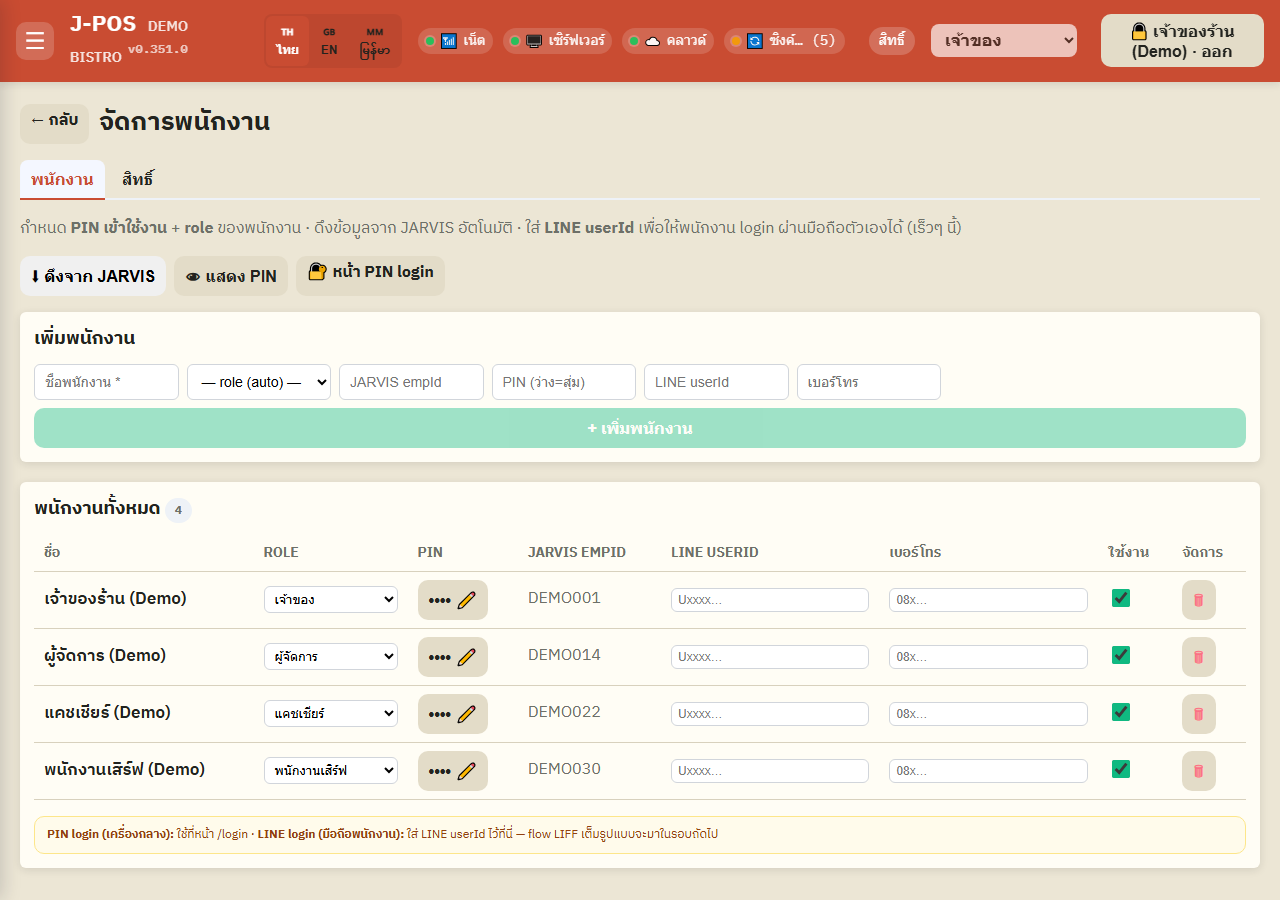
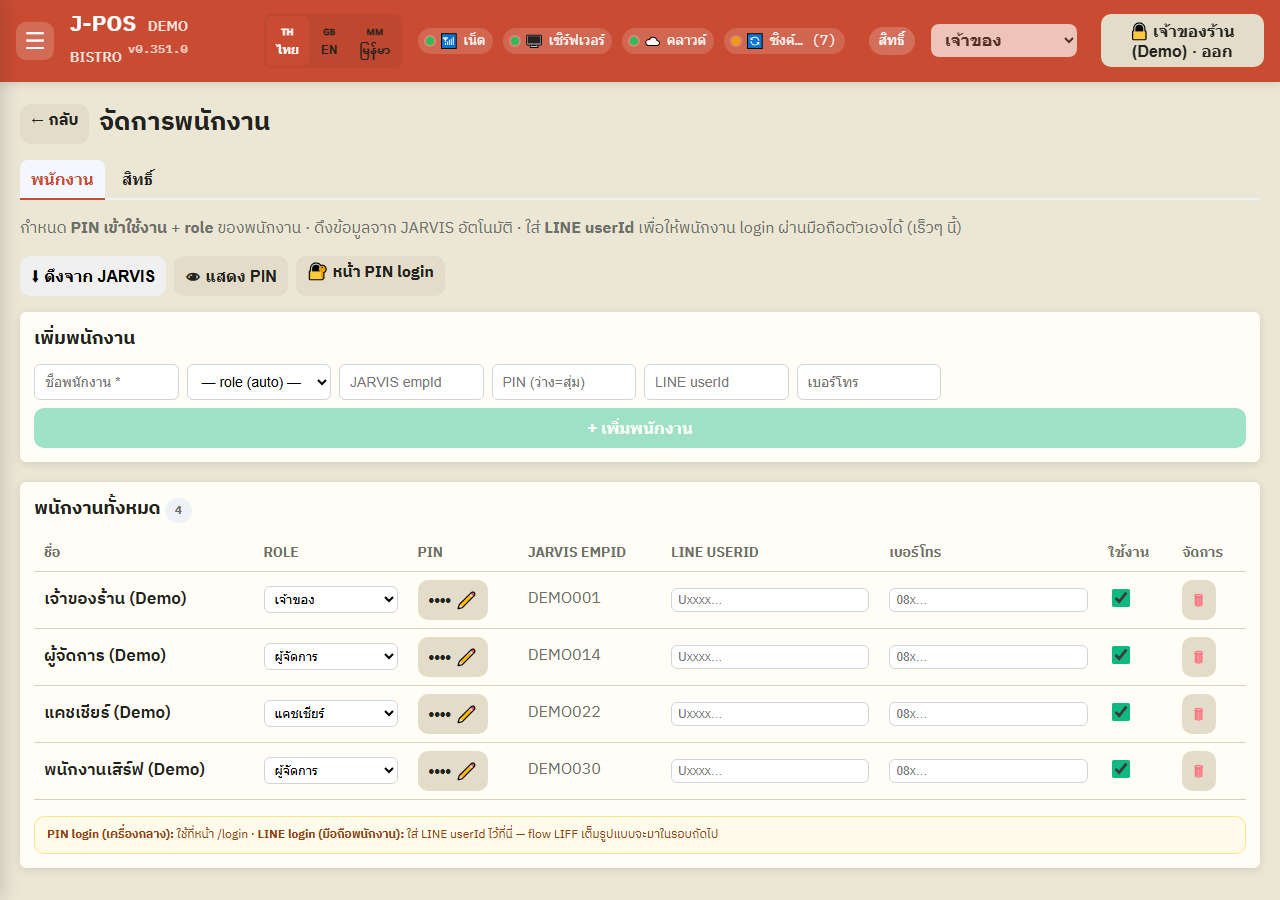
The “Manage staff” page (👤 Staff menu) has 2 tabs: “Staff” for adding/editing/removing staff and setting PINs — and “Permissions” for what each role can do (covered in its own help module).
The toolbar has 3 controls: “⬇ Pull from JARVIS” (auto-import staff from the central HR system), “👁 Show/hide PIN” (toggles the PIN column — see the PIN section below), and a link to the “🔐 PIN login” page (where staff actually log in at the terminal).
You need the staff.manage permission just to open this page — without it (and without permission.manage either) you see a no-permission message instead of any content.
Open full size Add a new staff member
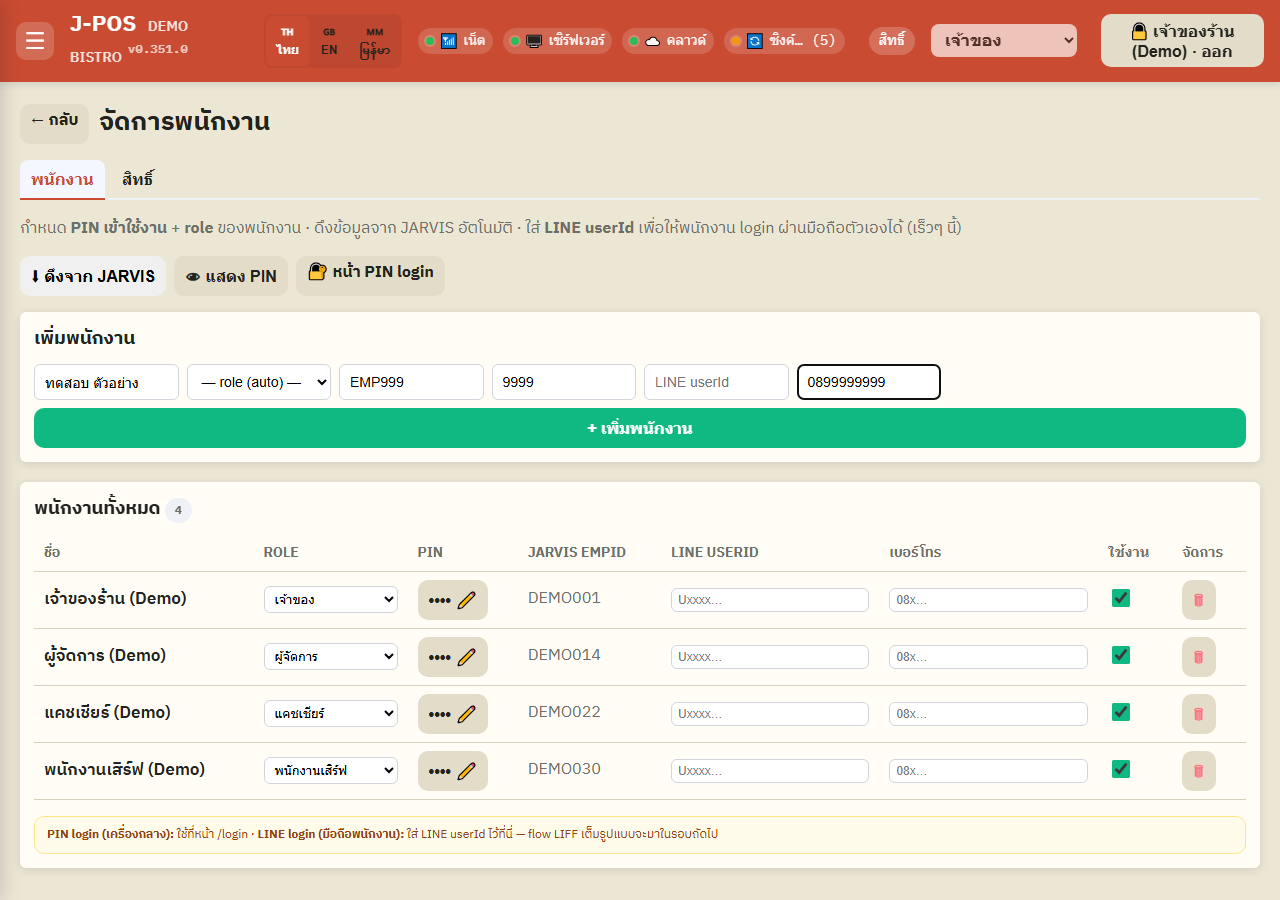
Enter the staff name (required, the only mandatory field), pick a role from the dropdown (leave blank → the system defaults to the “server” role), optionally set a JARVIS employee ID to link to an existing JARVIS record, and set a 4-digit PIN yourself or leave it blank to get a random unique one.
Names are NOT required to be unique — you can add two staff with the same name (see “Things that trip people up” below for how this affects JARVIS import).
LINE userId and phone are optional (LINE userId is reserved for a future staff-phone login flow — it doesn't do anything yet).
Open full size Edit staff inline in the table
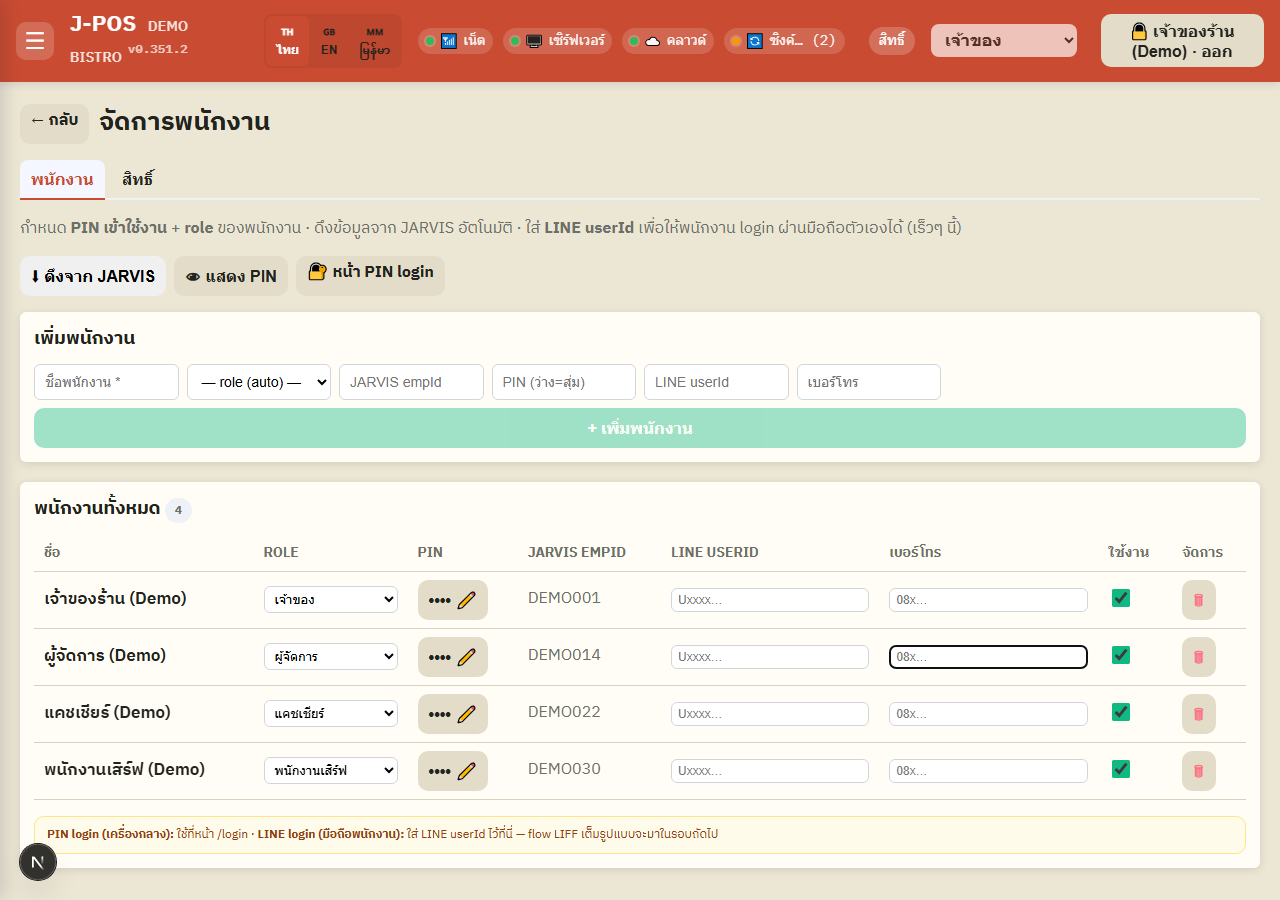
Every row is editable in place — no separate dialog: change the role from the ROLE column dropdown, edit LINE userId/phone by typing then pressing Enter or clicking away (auto-saves), and check/uncheck the “Active” column to instantly grant/revoke that person's ability to log in.
The trash icon on the far right permanently deletes a staff member (always asks for confirmation first) — the system does NOT check whether that person has any bills, shifts, or other history attached before deleting (see “Things that trip people up”).
Open full size
Set and reset login PINs
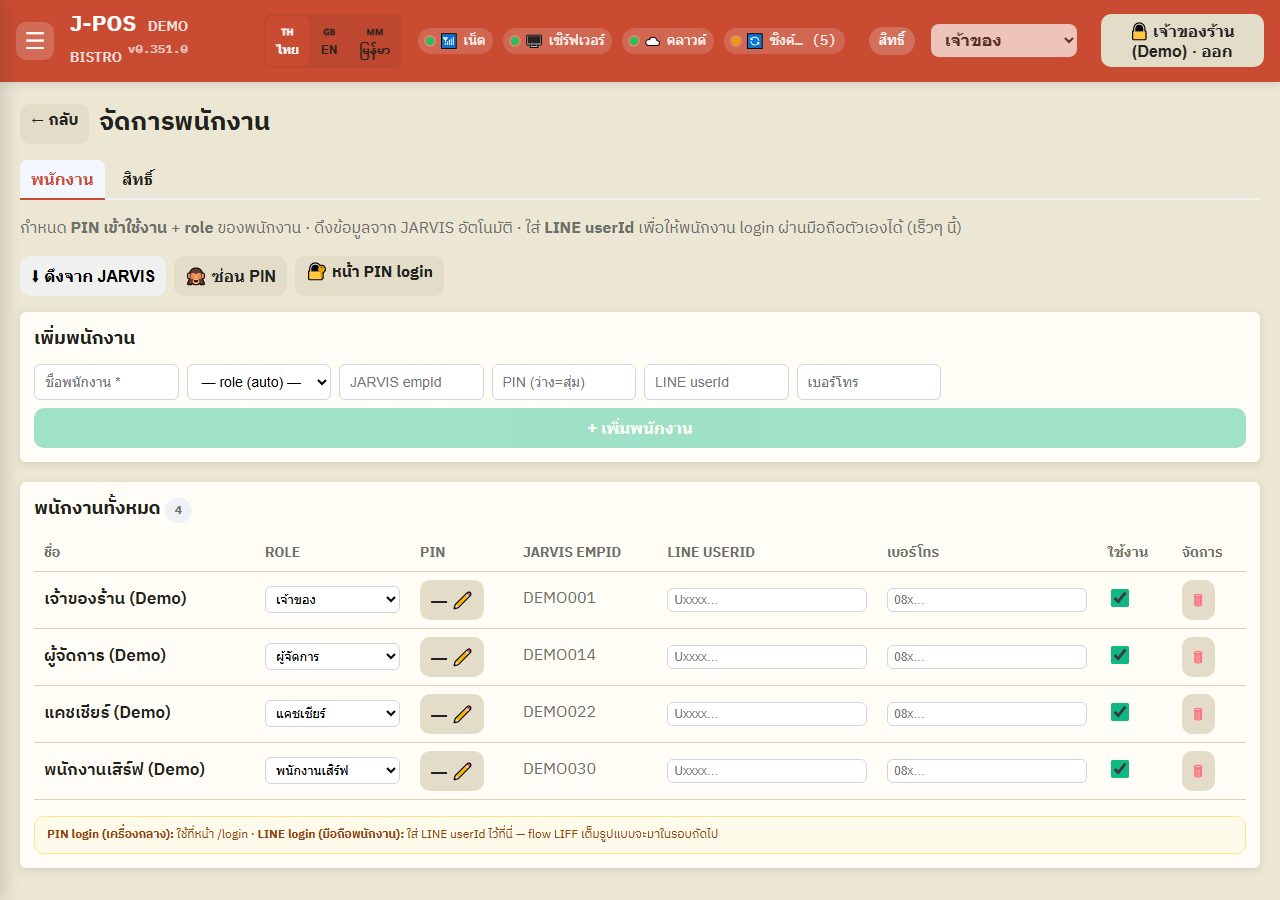
The “Show/hide PIN” button
This button only toggles its own label between “👁 Show PIN” and “🙈 Hide PIN” and swaps the icon in front of each row's PIN column — the actual PIN digits are never sent back to the browser either way (the server strips the PIN field from every API response for security), so the PIN column always reads “—”. This button only controls whether the ✏️ edit-PIN button is visible, not whether you can read anyone's real PIN.
This button (and each row's ✏️ edit-PIN button) is only visible to the owner or to someone holding the “manage permissions” (permission.manage) permission — holding staff.manage alone (enough to add/remove staff and change roles) is NOT enough to see it.
Open full size Reset a PIN with the on-screen keypad
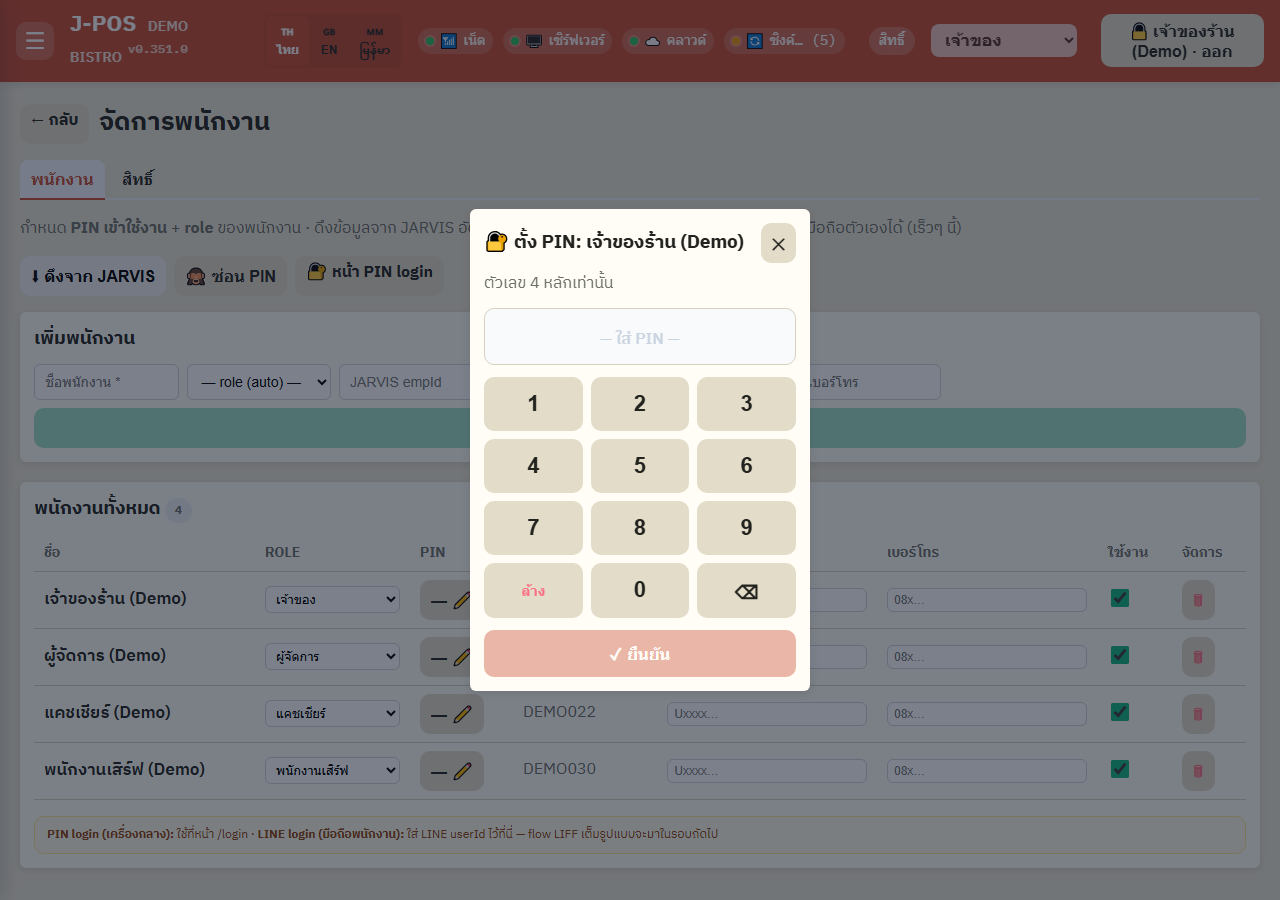
Click the ✏️ next to a staff member's PIN column to open a numeric-keypad modal — tap the new 4-digit PIN and press “✓ Confirm”.
A PIN must be exactly 4 digits and must not match any other staff's PIN currently in the system (including the owner's) — a duplicate is rejected with an error and nothing is saved.
A deactivated staff member (Active unchecked) still “occupies” their PIN — you can't hand that same PIN to a new staff member until you change the deactivated person's PIN or delete them.
Open full size
Permissions tab + how it connects elsewhere
The “Permissions” tab + related systems
The “Permissions” tab on this same page (visible only to whoever holds permission.manage) opens the detailed per-role permission matrix — the full walkthrough for setting permissions lives in its own “Manage permissions” help module. This page only covers the connection point: the role you assign someone in the “Staff” tab determines which permission set they get from the “Permissions” tab.
This page has no per-staff “attendance/shift” report of its own — each person's login/logout history is in the audit log (staff:login/staff:logout events), and per-shift sales summaries live on the shift-history page (see the “Shift history” help module).
The “⬇ Pull from JARVIS” button imports/updates staff from the central HR system — if the JARVIS connection URL hasn't been configured yet (in Settings), it just tells you so and lets you add staff manually instead; it never errors out.
Open full size
Common points of confusion
Duplicate staff names are allowed — but it affects JARVIS import
The system only checks that a name isn't blank, never that it's unique — you can add two staff members with the same name. But JARVIS import links any manually-created staff member who has no jarvisEmployeeId yet to a JARVIS record by an EXACT name match (the first one found) — if two un-linked staff share a name, an import can link the wrong one. Set each person's JARVIS employee ID before pulling from JARVIS if your venue has staff who share a name.
PINs must be unique store-wide (including the owner's), even for a deactivated staff member
Every PIN must be a 4-digit number and must not match anyone else's in the system, in any role — including the owner. Deactivating a staff member does NOT free up their PIN for reuse — you must change or delete that person's record first before handing their old PIN to someone new.
“Show PIN” doesn't actually reveal a real PIN — it only toggles the edit button
The system never sends the actual PIN value back to the browser (the server strips it from every API response for security), so the PIN column always shows “—” whether this button is toggled on or off. If you forget someone's PIN, the only option is to set a NEW one via the ✏️ button — there is no way to look up the old value again.
Resetting a PIN needs “manage permissions” — staff.manage alone isn't enough
The ✏️ edit-PIN button and the “Show/hide PIN” button only appear for the owner or someone holding permission.manage — a manager who only has staff.manage (which is enough to add/remove staff and change roles) will not see this button at all. Only the owner or a permission.manage holder can reset a PIN.
Deleting staff has no check for pending bills/shifts/history — deactivate instead
Confirming a delete removes that staff member immediately with no warning about any bills, shifts, or other history still referencing them. If a staff member has any sales history or other data on record, uncheck “Active” instead of deleting (they can no longer log in, but all their old data stays intact) — only delete once you're sure their history will never need to be looked up again.
One person can be logged in on multiple terminals at once, but logging out from any one of them logs them out everywhere
The same PIN can log in on several terminals simultaneously (each gets its own session). But tapping “Log out” on any single terminal invalidates that staff member's session on EVERY terminal at once, not just the one you tapped — the system revokes that person's whole access token, not one session at a time. Closing a shift similarly force-logs-out every non-owner staff member on every terminal automatically.