BOOK 19/25Reports & audits
Discount report
A retrospective audit of who approved which discount and how much, across every channel (promotion/coupon/end-of-bill discount/staff discount) — owner/authorized-staff only.
Reading the discount report
Pick a time range
Four presets: today, 7 days (the default), 30 days, or a custom “from...to...” range — unlike the main sales report, there's no this-month/last-month/by-shift option here, just these 4.
Every number recalculates instantly for the range you pick — it only counts bills that are already paid. An still-open (unpaid) bill is never counted, because its discount can still change at any moment; counting it now and again once it's actually paid would double-count it.
The range is based on when the bill was OPENED (created), not when the customer actually paid — see “Numbers may not match the main report” below.
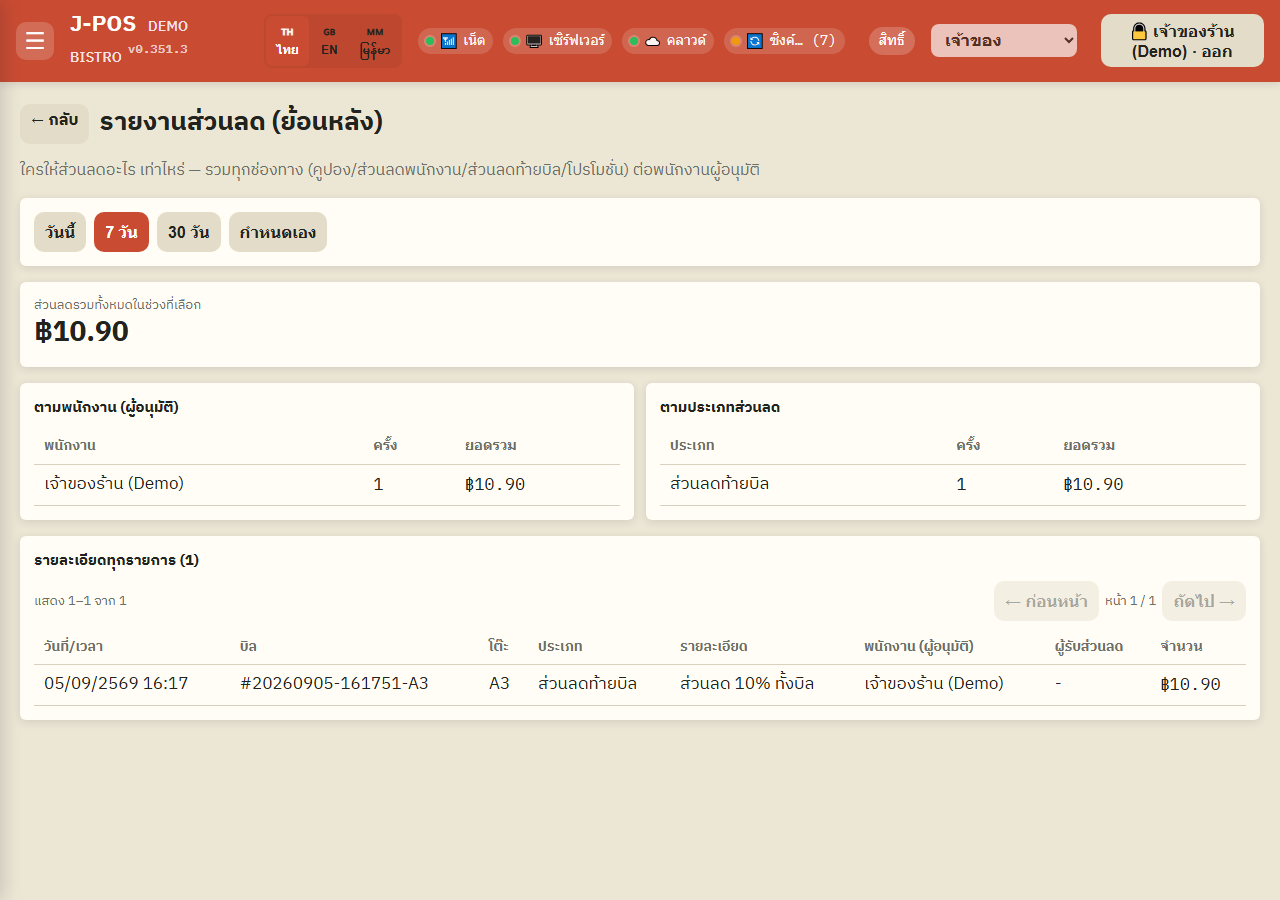
Open full size Read the total, the per-staff breakdown, and the per-type breakdown
The top card shows the total discount given across the selected range.
The “By staff (authorizer)” table ranks staff by how much discount they approved, highest first. A system-triggered promotion, or a coupon with no recorded approver on the bill, always lands in the “(Unattributed / automatic)” row — the system never guesses a name onto it.
The “By discount type” table splits into 4 types: promotion, coupon, end-of-bill discount (a manager/cashier knocking a set amount or percent off the whole bill), and staff discount (a special rate for staff ordering for themselves).
If a member's coupon was redeemed in that range, an extra “By member (coupon)” card appears, breaking coupon discount down per member — this card simply doesn't appear at all if no coupon was used in the range.
Open full size Read the full row-by-row detail table
The bottom “Every line item” table lists each row: date/time, bill number, table, discount type, a detail string (e.g. “10% off the whole bill”), the approving staff, the recipient, and the amount — newest first, 20 rows per page.
The “Staff (authorizer)” and “Recipient” columns can be two different people — this only ever happens on “staff discount” rows: the authorizer is the manager/owner who entered their PIN to approve it, while the recipient is the staff member who was eating. Every other type (promotion/coupon/end-of-bill) always shows “-” in the recipient column.
Open full size Set a custom date range
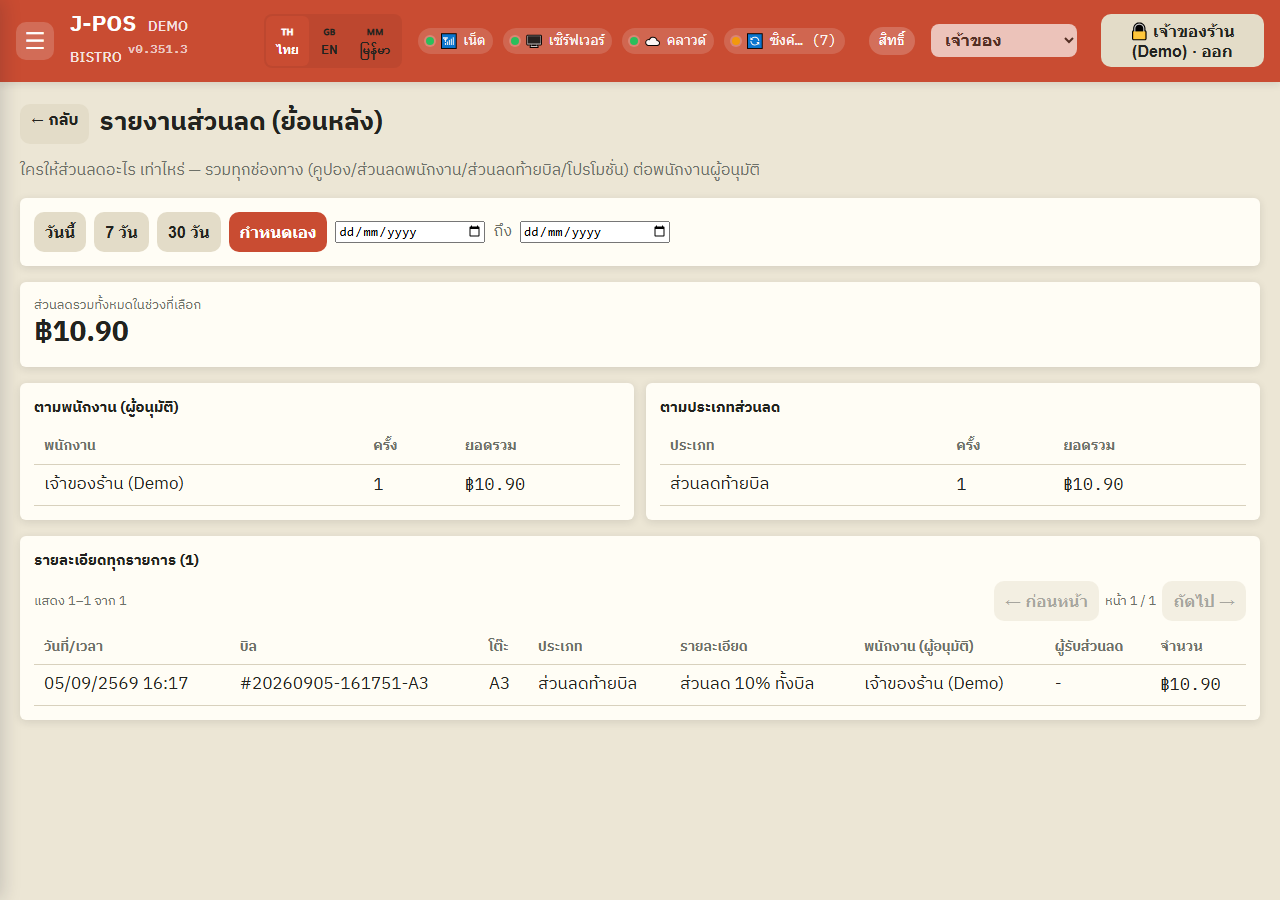
Press “Custom” and pick a start and end date from the two calendar fields — useful for checking one specific day (e.g. the day a customer complained about a discount) without scrolling through a whole 7- or 30-day window.
Open full size
Where these discount rows come from
End-of-bill / per-item / staff discounts start from the “Discount” button at checkout
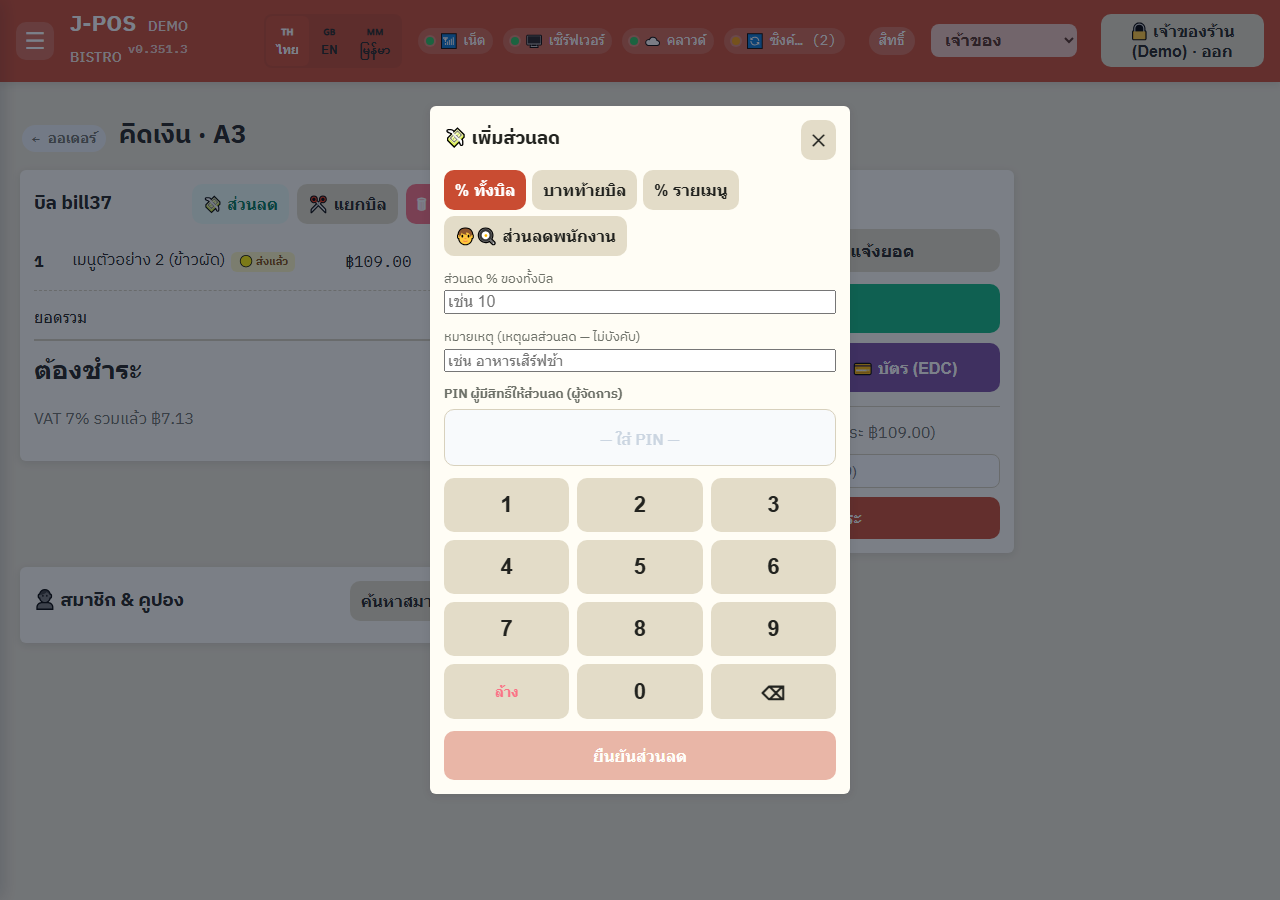
When staff open the bill to check out and press “Discount”, there are 4 options: % off the whole bill, a flat baht amount off, % off specific menu items, or a staff discount — every one of these, including the staff discount, requires entering an authorizing PIN (normally a manager's) before it's confirmed. The staff-discount option additionally requires picking the “recipient staff member” — a separate person from whoever enters the PIN.
Promotions come from a different place entirely — the system applies them automatically once its configured conditions are met, with no one pressing a button, so there's never an approver name for them (see “(Unattributed / automatic)” above). Coupons have their own separate entry point too: the “Member & coupon” box at checkout, or “Use member coupon OTP” while ordering.
The moment a discount is confirmed, the system records who confirmed it (PIN/name) directly onto the bill — that's exactly the data this report reads back out as the “Staff (authorizer)” column.
Open full size
Common points of confusion
Requires the “System/printer/floor-plan settings” permission to open
This page shares its gate with promotions, members, reservations, printers, shift/shift-history, and system settings (the settings.manage key) — the owner always has it. Any other role (manager, cashier, server, etc.) needs it explicitly granted on the “Manage permissions” page first; it is NOT automatically bundled with a job title. Without it, the whole page shows an access-denied message instead.
This number may not match the “Total discount” shown on the main sales report
The two pages scope by different clocks: this report counts by when the bill was OPENED, while the main sales report (§7 Audit data) counts by when the customer actually PAID. A bill left open overnight and paid the next day will land in a different day's total on each page. The main sales report also excludes refunded bills from its discount total — this report does not exclude refunded bills at all. If the two numbers ever disagree, check these two differences first.
There's no CSV export on this page
Unlike the main sales report, which exports every section into a single file, this discount report can only be viewed on screen — there is no export button here yet.
3 of the 4 totals always reconcile — “By member” is the exception
The “By staff” total, the “By discount type” total, and the top-line “Total discount” figure are always exactly equal (same underlying rows, just grouped differently). The “By member (coupon)” table, though, is only the coupon slice — it does NOT sum up to the total discount, since it excludes promotion, end-of-bill, and staff discounts entirely.